Microsoft Forms Word Cloud: Where to Find It and Fix It
Discover how to find and utilize the Microsoft Forms word cloud effectively. Analyze responses and enhance your presentations today!
Microsoft Forms does generate word clouds for open-text questions. Head to your form’s Responses tab, scroll to any open-text question, and click the Insights icon. If you need a word cloud during a live session, run a Word Cloud Poll in Microsoft Teams or use Present Live in PowerPoint. If neither option appears, export your responses as a CSV and build the visual externally. Those three paths cover nearly every scenario you’ll run into.
Table of Contents
- Where does the Microsoft Forms word cloud actually appear?
- How to run a live word-cloud poll in Teams and Present Live
- How to click from a word cloud to the exact responses underneath
- Why you might not see the word-cloud option, and how to fix it
- Known limitations, language support, and privacy notes
- How to export responses and build a word cloud externally
- Key Takeaways
- Word clouds are a starting point, not a conclusion
- Get more from your Forms responses with Wordcloudgenerator
- Useful sources
Where does the Microsoft Forms word cloud actually appear?
The word cloud lives inside the Responses tab, not the form editor. Open your form, click Responses at the top, then scroll to the open-text question you want to analyze. You’ll see a small chart icon labeled Insights next to that question. Click it, and Forms surfaces a word cloud built from key phrases it extracts across all submitted answers, not just raw single-word counts.
Once the cloud appears, you can Pin to question so the visualization stays visible beneath that question every time you return to the Responses tab, without clicking Insights again each visit.
Prerequisites that affect visibility:
How to run a live word-cloud poll in Teams and Present Live
These two paths serve different situations, and mixing them up wastes time.
Word Cloud Polls in Microsoft Teams
Teams lets meeting organizers create Word Cloud Polls before, during, or after a meeting. Before the meeting, open the meeting in your Teams calendar, go to the Polls tab, add a new poll, and select Word Cloud as the question type. During a live meeting, click the same Polls icon in the meeting toolbar and launch it on the spot. Responses appear as a growing cloud in the meeting window and in the meeting chat, so remote attendees see it in real time.
One hard limit: this feature is not available in GCC High or DoD tenants. If your organization operates in either environment, the Word Cloud Poll option simply won’t appear.
Teams polls work best for recurring sessions, team standups, or any meeting where you want a quick pulse check without leaving the Teams interface.
Present Live in PowerPoint
Present Live improvements let presenters embed a Forms question directly into a slide and collect live responses during a presentation. When the question is open-text, Forms can generate a word cloud on screen as answers come in. Crucially, you can toggle between the word cloud view and the detailed response list mid-session, which is useful when a surprising word dominates and you want to show the audience the actual quotes behind it.
Choose Present Live when you’re running a structured presentation or workshop where the word cloud is one moment in a longer narrative. Choose a Teams poll when the meeting is conversational and you want the cloud to live in the chat alongside discussion.
How to click from a word cloud to the exact responses underneath
The word cloud is a summary, not the full story. Here’s how to get from the visual to the raw answers:
- Open the Responses tab and click Insights on your open-text question to surface the word cloud.
- Click any word or phrase in the cloud. Forms shows a small stats panel with the count and the percentage of respondents whose answers included that phrase.
- Select View responses (or the equivalent link in the panel) to see the full list of individual answers that contained that phrase.
- Read through those responses to understand the context. A word like “confusing” means something very different depending on the sentence around it.
Forms extracts key phrases rather than isolated words, so clicking “customer support” shows you responses that mentioned that phrase as a unit, not every response that contained “customer” or “support” separately. That distinction matters when you’re trying to count how many people raised a specific concern.
Pro Tip: Copy the exact-response list into a spreadsheet column alongside a respondent ID column. That way you can tag responses by theme without losing track of who said what, which is the foundation of basic qualitative coding.
Why you might not see the word-cloud option, and how to fix it
| Symptom | Likely cause | Fix |
|---|---|---|
| No Insights icon on the open-text question | Too few responses | Collect more responses; the threshold isn’t published, but a dozen meaningful answers usually triggers it |
| Insights icon present but no word cloud shown | Language not yet supported or too little variation in answers | Check that responses are in English or Chinese; rephrase the question to encourage varied answers |
| Word cloud option greyed out or absent entirely | Feature not yet rolled out to your tenant | Check the Microsoft 365 Roadmap for rollout status; try a different browser or device |
| No Word Cloud Poll option in Teams | GCC High or DoD tenant | No workaround within Teams; use the CSV export fallback below |
| Feature appeared before but now missing | Browser cache or session issue | Clear cache, sign out, sign back in; try Edge or Chrome |
If you’ve tried all of the above and the feature still doesn’t appear, escalate to your Microsoft 365 admin. They can confirm whether the rollout has reached your tenant and whether any policy is blocking it.
Known limitations, language support, and privacy notes
The initial rollout covered English and Chinese, with other languages added in later stages. If your respondents write in Spanish, French, or another language, the word cloud may not appear or may produce thin results even with plenty of responses.
GCC High and DoD environments remain excluded from the Teams Word Cloud Poll feature. Standard Microsoft 365 commercial tenants are supported, but staged rollouts mean some organizations receive features weeks after others. The Microsoft 365 Roadmap is the most reliable place to check whether a specific feature has reached general availability for your tenant type.
On privacy: open-text answers are free-form user data. Before exporting responses or publishing a word cloud publicly, confirm that your survey’s consent language covers that use. Aggregated word clouds obscure individual identity, but the underlying CSV contains verbatim answers that may be identifiable.
How to export responses and build a word cloud externally
This fallback always works, regardless of tenant or language:
- Open your form and go to Responses.
- Click More options (the three-dot menu) and select Open in Excel or Download responses (.csv).
- In the spreadsheet, find the column that corresponds to your open-text question. That column holds all the raw answers.
- Clean the text: remove filler words (“the,” “and,” “a”), merge obvious synonyms (“great” and “excellent” into one), and delete any test responses you submitted yourself.
- Copy the cleaned text or save it as a CSV.
For data cleaning best practices before you import, the word frequency analysis guide on Wordcloudgenerator covers stop-word handling and synonym merging in plain terms.
Pro Tip: Keep a separate column with the respondent ID or row number before you clean the text. That column lets you trace any word in the final cloud back to the original response, which is essential if a stakeholder asks “who said that?”
Key Takeaways
Microsoft Forms provides built-in word clouds for open-text questions via the Responses tab, with Teams polls and Present Live for live sessions, and a CSV export path as a reliable fallback for any tenant or language gap.
| Point | Details |
|---|---|
| Where to find it | Go to Responses → click the Insights icon on any open-text question to see the word cloud. |
| Live session options | Use a Teams Word Cloud Poll for conversational meetings; use Present Live in PowerPoint for structured presentations. |
| Tenant and language limits | GCC High and DoD tenants cannot use Teams Word Cloud Polls; initial language support covers English and Chinese. |
| When to use the CSV fallback | Export responses as CSV whenever the built-in cloud is missing, unsupported, or too limited for presentation use. |
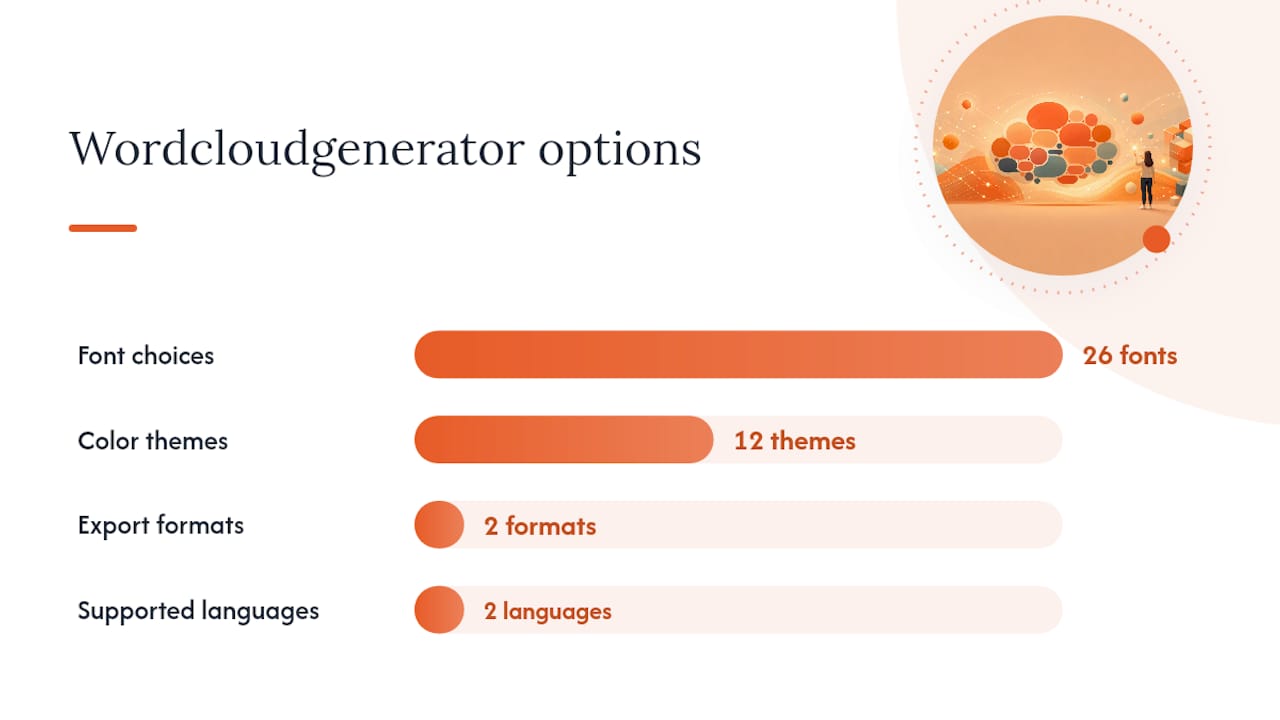
| Wordcloudgenerator as fallback | Paste or upload your cleaned CSV at Wordcloudgenerator for 26 font choices, 12 color themes, and high-res PNG/SVG export. |
Word clouds are a starting point, not a conclusion
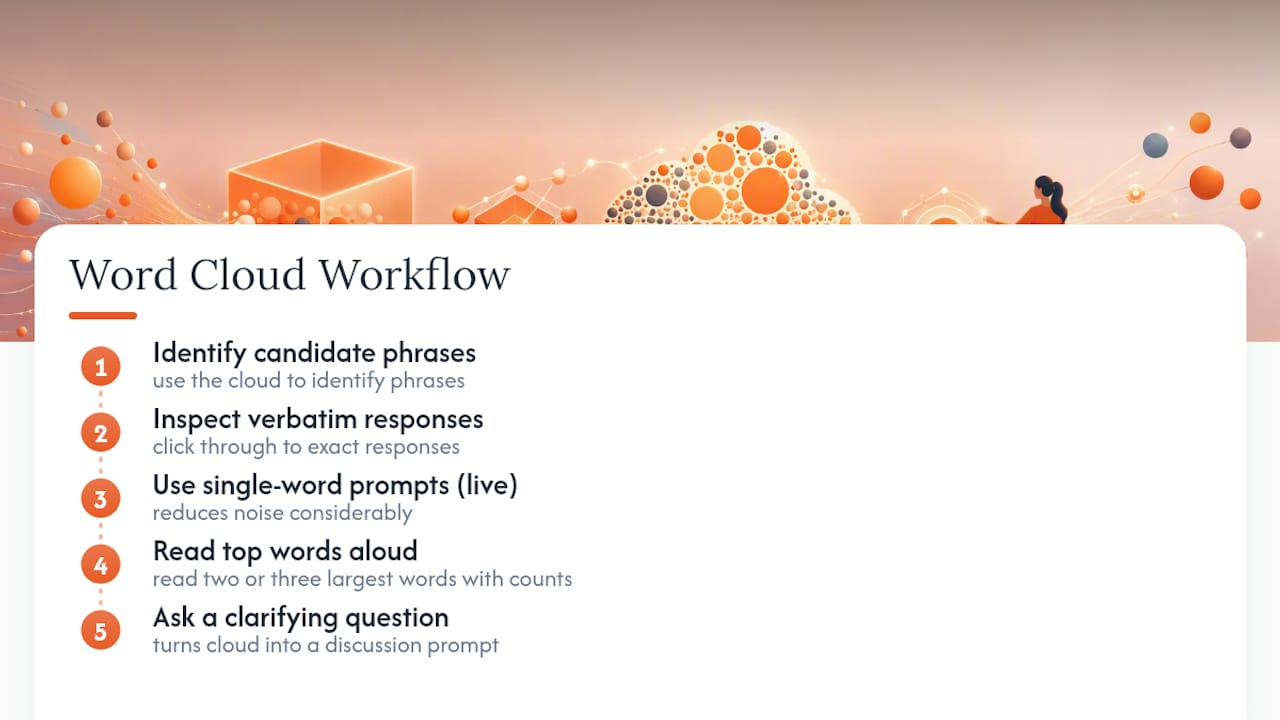
The most common mistake with word clouds in surveys is treating the visual as the finding. A large word just means it appeared often. It doesn’t tell you whether respondents meant it positively, negatively, or sarcastically, and it doesn’t tell you whether the ten people who used it represent a real pattern or a quirk of how the question was worded.
The better practice is to use the word cloud to identify which phrases deserve a closer look, then click through to the exact responses behind those phrases. That combination, the visual for orientation and the verbatim answers for interpretation, is what makes the feature genuinely useful rather than decorative. For live sessions, single-word prompts reduce noise considerably. Ask “What one word describes today’s training?” instead of an open sentence, and the cloud becomes readable in seconds. Follow up by reading two or three of the largest words aloud with their actual response counts, then ask the room a clarifying question. That sequence turns a word cloud from a slide decoration into a real discussion prompt.
Get more from your Forms responses with Wordcloudgenerator
When the built-in insight is too plain for a presentation or your tenant doesn’t support it yet, Wordcloudgenerator gives you a fast, free upgrade. Export your open-text column as a CSV, upload it directly to the tool, and you have a customizable word cloud in seconds, no signup required.
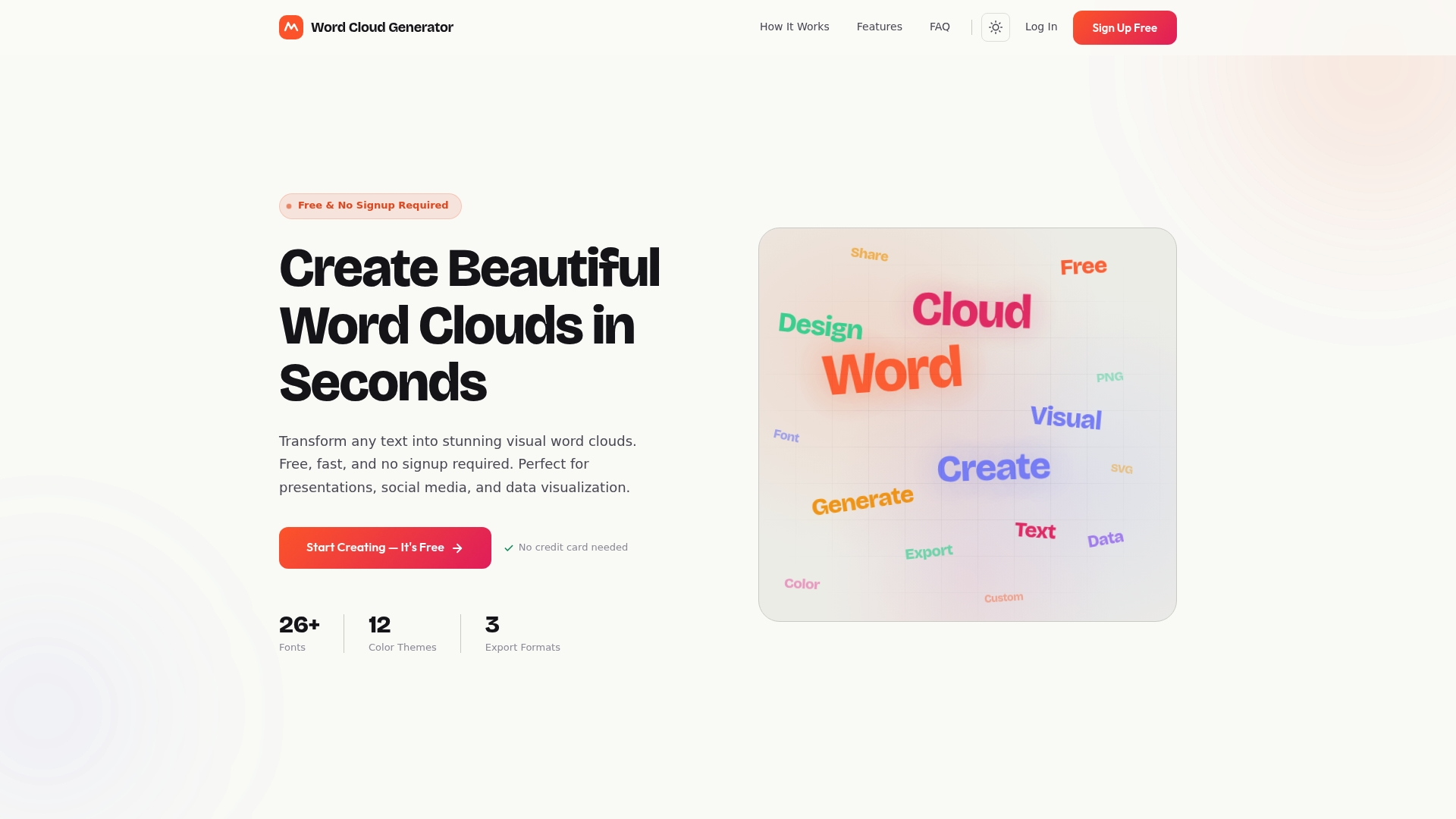
You get 26 font options, 12 color themes, and stop-word filtering built in, so the cloud reflects your brand palette and drops filler words automatically. Download the result as a high-resolution PNG or SVG, and it’s ready for a slide deck, a report, or a printed handout. For tips on making the visual work in a presentation context, the word cloud presentation guide walks through layout and export choices that the Forms built-in view doesn’t offer. Paste your text, pick your colors, and download.
Useful sources
These are the primary references to consult for rollout details, step-by-step instructions, and tenant questions:
- Poll attendees during a Teams meeting — Microsoft Support
- Three New Intelligence and Insights Features from Microsoft Forms — Microsoft Tech Community
- Improved real-time feedback gathering experience with Microsoft Forms — Microsoft Tech Community
- Creating word cloud in Microsoft Teams — Mica IT
- Microsoft 365 Roadmap
Recommended
- How to Create Stunning Word Clouds for Your Next Presentation – Word Cloud Generator
- Home – Word Cloud Generator
Article generated by BabyLoveGrowth
Word cloud creation steps:
Export your finished word cloud: