How to Make a Word Cloud: 5-Minute Guide
Learn how to make a word cloud in just five minutes! Create stunning visuals by pasting your text, choosing a style, and exporting easily.
You can make a presentation-ready word cloud in five minutes by pasting or uploading your text, picking a shape and color palette, and exporting a PNG or SVG. The fastest route: head to Wordcloudgenerator, paste your text, and hit generate. No account required.
The steps below walk you through every stage, from preparing your source text to exporting a file that looks sharp on a slide or a printed page.
Table of Contents
- How to make a word cloud in five minutes
- What text sources work, and how to prepare them
- How shapes, fonts, colors, and weighting change the message
- What export format should you use?
- When to use word clouds and how to make them effective
- Quick fixes for common word cloud problems
- Other ways to build a word cloud: Microsoft 365, add-ins, and code
- Key Takeaways
- Word clouds are more useful than people give them credit for
- Wordcloudgenerator turns any text into a slide-ready visual in seconds
How to make a word cloud in five minutes
- Paste or upload. Open Wordcloudgenerator and paste your text directly into the input box. Alternatively, upload a TXT, DOCX, PDF, or CSV file, or drop in a YouTube video URL to pull comments automatically.
A typical workflow looks like this: paste a suitable amount of post-event survey responses, select a circular shape with a blue palette, raise the minimum frequency to a small threshold, and export PNG. The whole process is quick and efficient.
Pro Tip: Raise the minimum frequency to 2 or 3 before generating. Single-occurrence words almost always add visual clutter without adding meaning.
What text sources work, and how to prepare them
Wordcloudgenerator accepts five input types, each suited to a different scenario.
- Create word clouds using Microsoft 365 Copilot Chat
- gutenberg.org
-
- Free Word Cloud Generator — No Signup, Instant Results
- Home – Word Cloud Generator
- How to Create Stunning Word Clouds for Your Next Presentation – Word Cloud Generator
- developer.microsoft.com
Corpus size matters more than most people expect. A 100-word input gives you maybe 30 unique words after stopword filtering, which means the size differences between words are almost meaningless. A 500-word or longer input produces a much cleaner frequency distribution. For a stress test, try pasting a chapter from a public-domain novel at Project Gutenberg to see how stopword filtering and frequency thresholds interact at scale.
One prep habit worth building: decide upfront whether numbers and dates belong in your cloud. A financial report might need them; a sentiment analysis almost never does.
How shapes, fonts, colors, and weighting change the message
Word size is the core signal in any cloud. Frequency maps directly to font size: the more often a word appears, the larger it renders. Most generators scale linearly between a minimum and maximum size, then display the top words after stopword filtering. The practical implication is that if your text has one word appearing 50 times and everything else appearing twice, that one word will dominate visually in a way that may or may not reflect what you want to communicate.
| Control | What it does | When to use it |
|---|---|---|
| Word size scaling | Maps frequency to font size | Always on; adjust min/max range to prevent one word from overwhelming the layout |
| Shape | Constrains word placement to a silhouette | Use a shape for branded or social content; rectangle for slides and reports |
| Font | Sets the typeface for all words | Pick a sans-serif for readability; decorative fonts work for posters |
| Color palette | Assigns colors to words | Use brand colors for marketing; high-contrast palettes for accessibility |
| Manual weights (CSV) | Overrides frequency with your own values | Use for keyword maps, content audits, or weighted survey data |
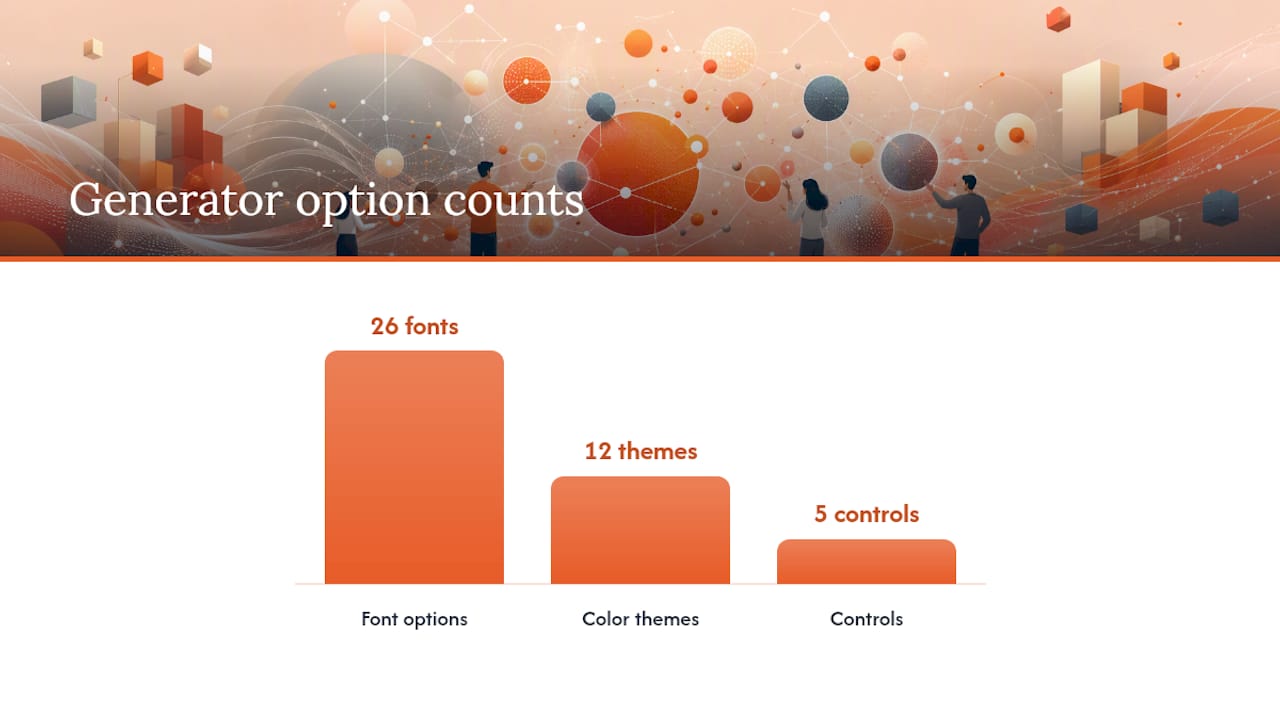
Wordcloudgenerator offers 26 font options and 12 color themes, which covers most presentation and branding scenarios without needing a design tool.
For accessibility, aim for a contrast ratio of at least 4.5:1 between word colors and the background. Light words on a white background fail this test badly. If your audience includes people with color vision deficiencies, avoid red/green combinations and lean on blue/orange or black/white palettes instead.
Pro Tip: For branded presentations, load your brand’s hex colors as a custom palette rather than using a preset theme. The result looks intentional rather than generic.
What export format should you use?
The right format depends entirely on where the cloud is going.
| Format | Best for | Notes |
|---|---|---|
| PNG | Slides, web pages, social media | Supports transparent backgrounds; fixed resolution |
| SVG | Print, large-format displays, web embedding | Scales without quality loss; smaller file size |
| JPEG | Quick email attachments, low-bandwidth sharing | No transparency; slight compression artifacts |
For PowerPoint or Google Slides, PNG at high resolution is the standard choice. Export at the largest available size and insert it as an image. For print materials like posters or banners, SVG is the right call because it scales to any dimension without pixelation. Wordcloudgenerator’s presentation export guidance covers resolution settings and palette choices for slide-ready output specifically.
For web embedding, SVG also wins. You can drop it directly into an HTML file with an <img> tag or inline it for full CSS control. JPEG is fine when you just need to attach something to an email and file size matters more than crispness.
Transparent backgrounds are available in PNG and SVG exports. Use them when placing the cloud over a colored slide background or a branded template.
When to use word clouds and how to make them effective
Word clouds work best as a quick visual summary, not as a primary analytical tool. The highest-value use cases are:
-
— YouTube comment imports or scraped social data show audience language patterns at a glance.
For more ideas on how marketers apply these visuals, the creative uses for word clouds page covers specific campaign scenarios.
A few rules that keep clouds honest: keep the word count below 80 for readability; use a neutral or white background so word colors carry the contrast; and always note your methodology when using a cloud in a report (what text, what filters, what minimum frequency). A cloud without context is decoration. A cloud with context is a communication tool.
Pro Tip: Pair your word cloud with a simple bar chart of the top 10 terms. The cloud draws the eye; the chart gives the numbers. Together they make a stronger analytical slide than either alone.
Quick fixes for common word cloud problems
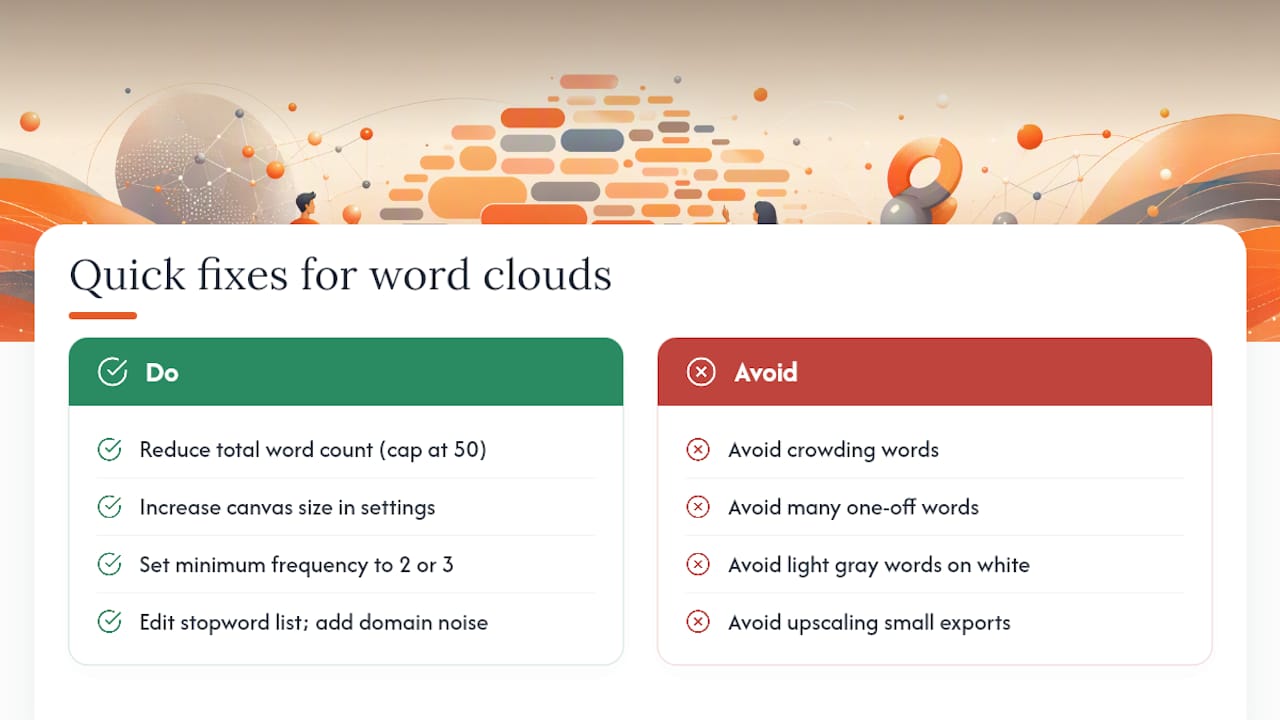
Words overlap or crowd together. Reduce the total word count (try capping at 50), increase the canvas size in settings, or raise the minimum frequency. Overlap usually means too many words competing for too little space.
Too many one-off words. Set minimum frequency to 2 or 3. If your text is short, merge variants manually: “run,” “running,” and “ran” should count as one term. This is where a CSV input with pre-aggregated weights beats raw text.
One word dominates everything. Cap the maximum font size. If a single term appears far more often than anything else, a hard size cap prevents it from visually drowning the rest of the cloud.
The cloud looks washed out or hard to read. Check your color-to-background contrast. Light gray words on white fail every readability test. Switch to a high-contrast palette or a dark background.
Stopwords are showing up. Edit the stopword list directly. Common culprits: “the,” “and,” “that,” “with.” Add domain-specific noise words too, like “please” in survey data or “http” in scraped web text.
Pro Tip: For a high-resolution export, generate at the largest canvas size available, then scale down in your slide deck rather than generating small and scaling up. Downscaling preserves sharpness; upscaling destroys it.
Other ways to build a word cloud: Microsoft 365, add-ins, and code
Not every workflow starts with a browser tab. Here are three alternatives worth knowing.
- Microsoft 365 Copilot Chat. Copilot Chat can generate a word cloud from an attached file using a simple prompt: “Create a word cloud from this document.” This works well for teams already living in Microsoft 365 who want to stay inside that environment. The output quality depends on Copilot’s current rendering capabilities, so check the result before sharing.
- Microsoft Word or PowerPoint add-ins. The Microsoft app store and developer.microsoft.com list add-ins that embed word-cloud generation directly into Office apps. A short video tutorial for Word-based clouds walks through the add-in installation and generation steps if you prefer a desktop workflow.
- JavaScript libraries or API integration. Developers who need automated or interactive clouds can use JS libraries to render frequency-based clouds client-side, or call a word-cloud API to generate images programmatically. This route makes sense for dashboards, CMS integrations, or any scenario where the input text changes dynamically.
| Method | Best for | Requires |
|---|---|---|
| Browser generator (Wordcloudgenerator) | Fast, one-off, no-code use | Browser only |
| Microsoft 365 Copilot Chat | Teams inside Microsoft 365 | Copilot license |
| Word/PowerPoint add-in | Desktop Office workflows | Office install + add-in |
| JS library / API | Automated or interactive apps | Developer setup |
Key Takeaways
The fastest path to a usable word cloud is paste or upload text, filter stopwords, and export PNG or SVG — the entire process takes under five minutes with no account required.
| Point | Details |
|---|---|
| Five-minute workflow | Paste or upload text, set minimum frequency, pick a palette, and export. |
| Font size scaling | Frequency drives word size; cap the maximum to prevent one term from dominating. |
| Color contrast | Aim for at least 4.5:1 contrast ratio between word colors and background for readability. |
| Export for slides | Use PNG at the largest available size for PowerPoint and Google Slides. |
| Wordcloudgenerator | Free, no-signup generator supporting text, CSV, and YouTube comment inputs with PNG and SVG export. |
Word clouds are more useful than people give them credit for
The standard critique is that word clouds are superficial — they show frequency, not meaning, and they can be gamed by anyone who controls the input. That critique is fair. A cloud built from cherry-picked quotes tells you nothing about the actual distribution of opinion.
But that is a methodology problem, not a tool problem. When the input is honest and the filters are documented, a word cloud communicates something a table of numbers cannot: the texture of language. What words did people actually reach for? What came up again and again without prompting? That is genuinely useful information, especially in qualitative research, audience analysis, and presentation design.
The readers who get the most out of word clouds are the ones who treat them as a starting point rather than a conclusion. Generate the cloud, notice what stands out, then go back to the raw data and ask why. The cloud is the question; the analysis is the answer.
Wordcloudgenerator turns any text into a slide-ready visual in seconds
Skip the design software. Wordcloudgenerator takes your text, CSV, or YouTube comment thread and produces a polished word cloud with 26 font choices, 12 color themes, and export options in PNG, JPEG, or SVG. No account needed to generate and download your first cloud.
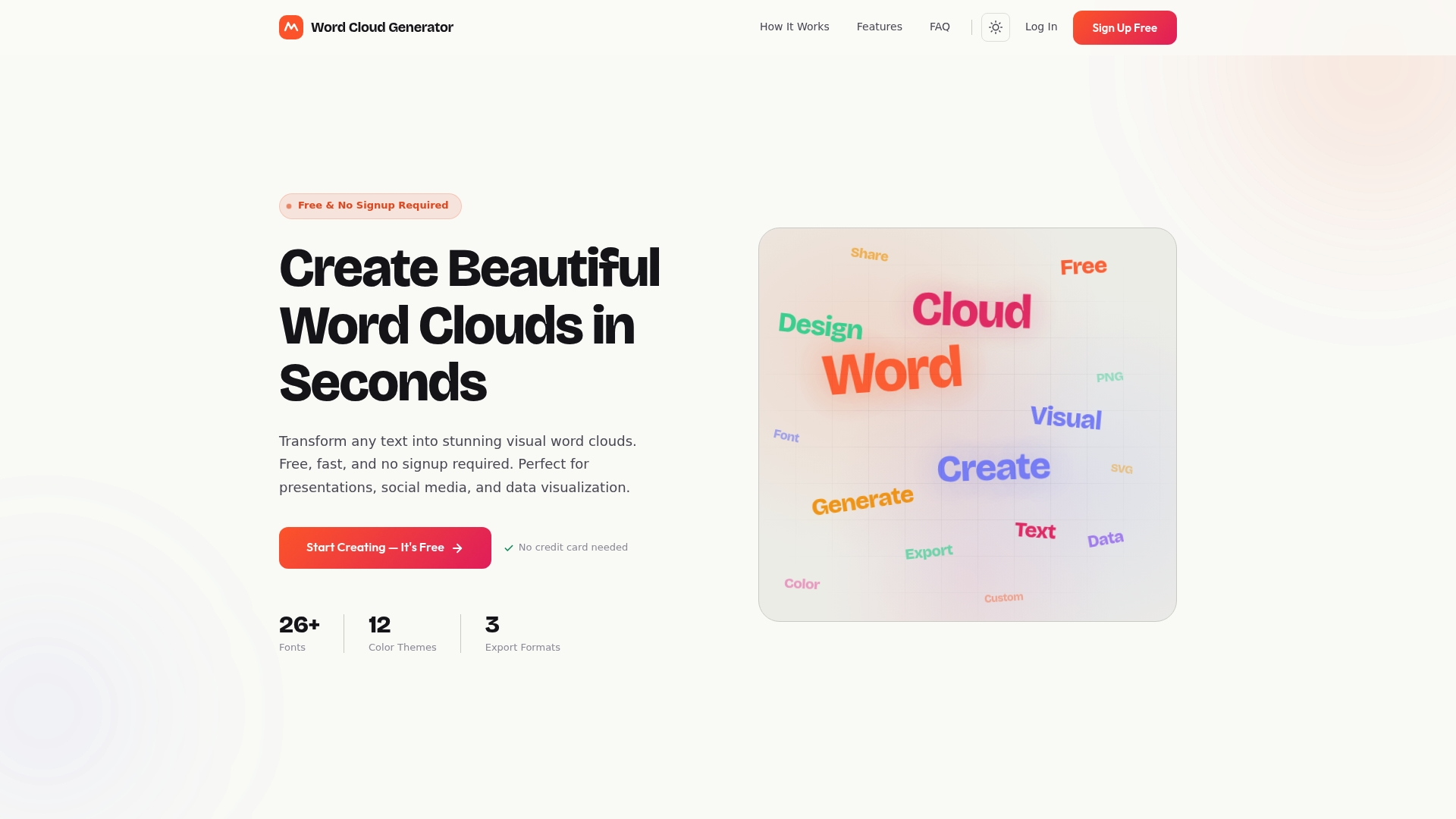
Educators use it to visualize student feedback. Marketers use it to map campaign language. Presenters drop the SVG export straight into a slide deck and move on. The free word cloud generator is ready the moment you open it. Paste your text and see what your words actually look like.
Recommended
Article generated by BabyLoveGrowth
Word cloud creation steps:
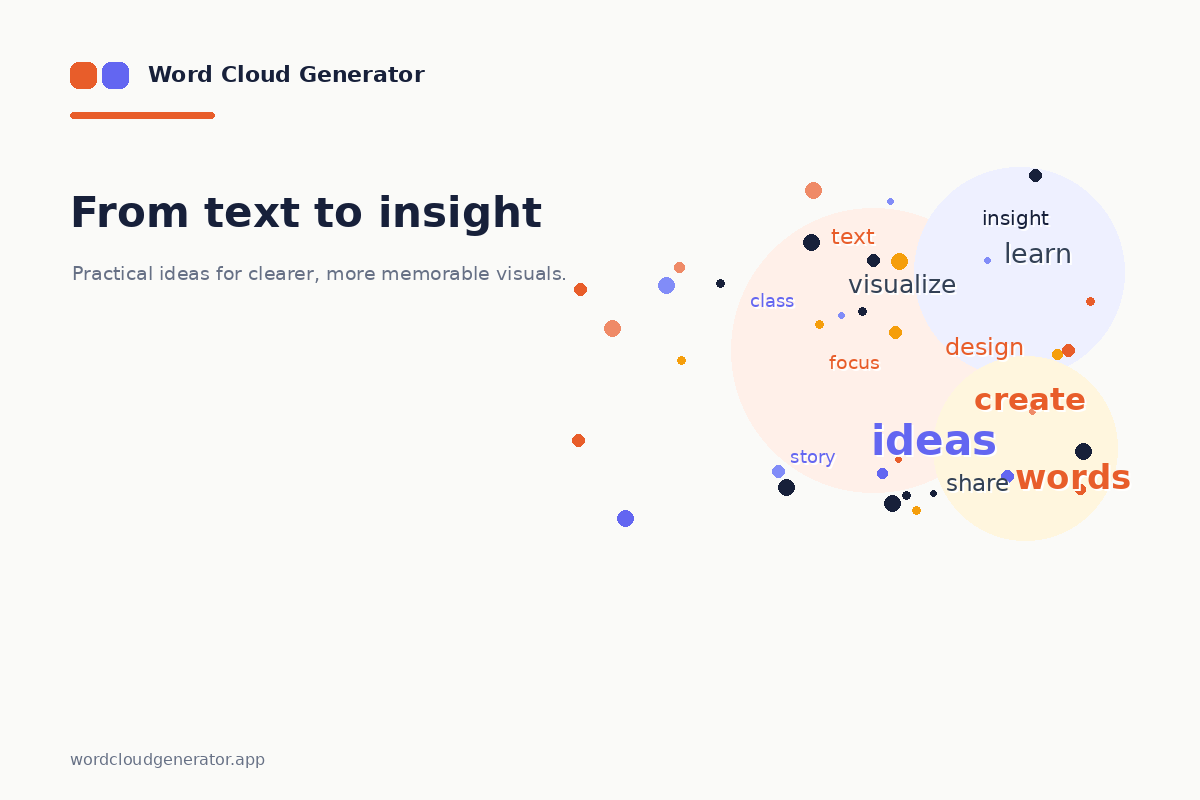
Export your finished word cloud: