How to Make a Word Cloud From a PDF (Step by Step)
Turn any PDF into a word cloud in minutes: check whether the text is selectable, clean out stop words, style the cloud and export it without signing up.
To make a word cloud from a PDF, upload the file to a generator that can read it, let the tool pull out the text, remove common filler words, and export the image. The one thing that decides whether this works is whether your PDF contains real text or only pictures of pages. This guide shows you how to check that in ten seconds, how to clean the result, and how to read the finished cloud without fooling yourself.
We built Word Cloud Generator to handle exactly this job without an account, so the steps below use it. The principles apply to any tool.
TL;DR
- Try to select and copy a sentence from your PDF. If you can, it has a text layer and will convert cleanly. If you can’t, run OCR first.
- Remove stop words (the, and, of) and any boilerplate such as headers, footers and your organization’s name, or they will dominate the cloud.
- Export as PNG or JPEG for slides and documents, or SVG when you need a sharp image at any size.
- A word cloud is an overview, not a measurement. Check anything surprising against the source text.
- For confidential files, think about where the text is processed before you upload.
Table of Contents
- What a word cloud from a PDF actually does
- Step 1: Check whether your PDF has selectable text
- Step 2: Upload the PDF and pull out the text
- Step 3: Remove stop words and boilerplate
- Step 4: Style the cloud so it reads well
- Step 5: Export in the right format
- Other ways to make a word cloud from a PDF
- How to read a word cloud without misleading yourself
- Our perspective: what we see people get wrong
- Make your own word cloud from a PDF
- FAQ
- Sources
What a word cloud from a PDF actually does
The process is simple. The tool opens the document, extracts the text, splits it into words, removes the ones you don’t care about, counts how often each remaining word appears, and draws the most frequent ones in larger type. Library guidance on Voyant Tools, a text-analysis application, describes the same pipeline: documents in, frequencies out, and a cloud as one of several views.
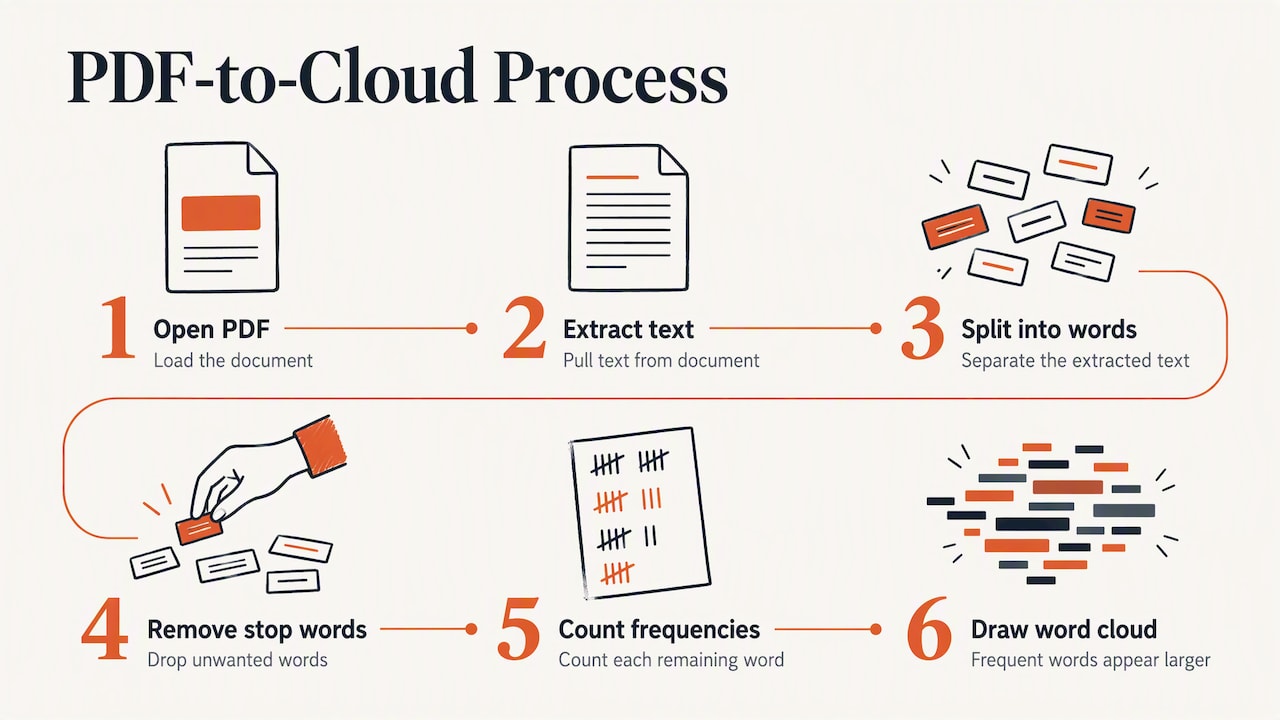
That last point matters. The cloud is a summary. It tells you what a document talks about most, not what it says about it.
When a PDF word cloud is the right tool
A cloud earns its place when you want a fast, high-level look at a long document. Typical cases:
- Teachers turning a chapter, article or reading packet into a visual of key concepts for a lesson opener or review.
- Students checking that a draft essay or report stresses the themes they meant to stress.
- Marketers looking at exported customer feedback, survey responses or review compilations saved as PDF.
- Analysts skimming a long report, transcript or policy document before deciding where to read closely.
- Content creators who want a distinctive graphic for a slide, a newsletter or a blog post.
If your question is “how many times does this exact term appear in section 3 versus section 5,” a cloud is the wrong chart. More on that below.
Step 1: Check whether your PDF has selectable text
PDFs come in two kinds, and they look identical on screen.
- Text PDFs are exported from Word, Google Docs, a web page or a design tool. The words are stored as text.
- Scanned PDFs are photos of paper pages. The words are only pixels.
The quick test: open the file, click into a paragraph and try to highlight a sentence, copy it, or search for a word with Ctrl+F (Cmd+F on a Mac). If nothing highlights or the search finds nothing, you have a scan. The U.S. government’s accessibility training makes the same point: a PDF without searchable, renderable text is a problem for anyone, and for software, because the content is not available as text.
If your PDF is a scan
You have two routes.
- Run OCR first. Optical character recognition converts the page images into text. Adobe’s online tool lets you drag in a PDF and get a searchable version back. Then upload that file.
- Convert the pages to images. Our generator also accepts image uploads with OCR built in, so a photographed page or a screenshot can go straight in. See the word cloud from image page for how that works.
Either way, do not trust OCR blindly. Section508.gov states that OCR output may not fully match the physical page and that suspect characters need correction. Poor scans, skewed pages, small print and handwriting produce misread words, and a misread word that repeats can show up in your cloud as a large, meaningless term. Skim the recognized text for names, technical vocabulary and anything in a table.
Step 2: Upload the PDF and pull out the text
Here is the workflow in our tool.
- Open the Word Cloud Generator. No registration is required.
- Choose the PDF input and upload your file.
- Wait a moment while the text is extracted and the first cloud appears.
- Review the cloud before styling anything. If the biggest words are page numbers, a journal name or “confidential,” you have cleanup to do (next step).
The same generator also takes typed or pasted text, CSV files, web page URLs and YouTube comments, which is handy when your material is spread across formats. You can see the full list of inputs on the features page, and a short walkthrough on how it works.
Long PDFs: work in sections
A 200-page report produces a cloud dominated by whatever is repeated everywhere. Instead, split it. Make one cloud for the executive summary, one for the methods, one for the conclusions, and compare. Library guidance for classroom and research use recommends analyzing sections separately where possible rather than accepting a single image of the whole. If your PDF is too large for a single pass, export the pages you want into a smaller file first.
Step 3: Remove stop words and boilerplate
This step separates a useful cloud from a decorative one. Left alone, any English document will give you “the,” “of,” “and” and “to” as its stars. Turn on stop word removal so those disappear automatically.
Then handle the words that are specific to your file:
| Problem in the cloud | Likely cause | Fix |
|---|---|---|
| Company or school name is huge | Repeated in every header or footer | Add it to the exclusion list |
| Numbers like “12” or “2026” dominate | Page numbers, dates | Exclude them |
| “Figure”, “table”, “page” are prominent | Captions and references | Exclude them |
| Odd fragments like “rn” or “tbe” | OCR misreads | Correct the text or re-scan |
| The topic word itself is the biggest | It is the subject of the whole document | Remove it so the next layer of themes shows |
That last row is the trick people miss. If you are visualizing 40 customer reviews of a coffee machine, “coffee” and “machine” will win every time and tell you nothing. Take them out and the words that remain, such as “leaks,” “loud” or “easy,” are the story.
Watch for singular and plural pairs
“Student” and “students” count as separate words in most generators. If one concept is split across forms, its real weight is higher than either word suggests. Keep that in mind when you read sizes.
Step 4: Style the cloud so it reads well
Once the words are right, make it legible and on-brand. Our generator offers 26 fonts and 12 color themes. A few practical guidelines:
- Contrast first. Dark text on a light background is safest for printed handouts and projectors. Light text on dark works on modern screens but can wash out in a bright room.
- Pick one or two color themes’ worth of variety. Color in a word cloud is usually decoration. Research on how readers perceive word clouds notes that size, position, color and saturation all draw the eye and can distort perceived importance, so avoid using bright colors on minor words if you want a faithful picture.
- Choose a clean font for serious material. Playful scripts suit a classroom bulletin board. A neutral sans-serif suits a board report.
- Limit the word count. Showing 50 to 100 words is usually more readable than 300.
Step 5: Export in the right format
Pick the file type for where the image is going.
| Format | Best for | Notes |
|---|---|---|
| PNG | Slides, documents, web | Sharp edges, supports transparency |
| JPEG | Email, quick sharing, small files | Smaller file, slight compression |
| SVG | Print, posters, anything that gets resized | Vector, stays crisp at any size |
Our exports are high resolution in all three formats. If you are adding the result to a deck, the guides on making a word cloud in PowerPoint and adding one to Google Slides cover the placement details. One accessibility habit worth adopting: keep the ranked word list or a one-sentence description beside the image. A picture alone gives screen-reader users nothing, and it gives sighted readers no exact values.
Other ways to make a word cloud from a PDF
We think a no-install browser tool is the fastest route for most people, but it is not the only one. Here are the main types of alternatives and when each makes sense.
| Approach | Good for | Trade-off |
|---|---|---|
| Browser-based generator (like ours) | Fast results, styling, export, no setup | Less depth than a full analysis suite |
| Academic text-analysis environments | Frequencies, trends and word-in-context views next to the cloud | Steeper learning curve; built for research, not for pretty slides |
| Python with an open-source library | Batch jobs, private files, reproducible pipelines | Needs installation and some coding |
| Word processor or slide software | Nothing automatic: you must build the cloud by hand | Slow and imprecise |
The academic option is genuinely good for scholarly work. Voyant Tools accepts PDFs and shows the cloud together with frequency and trend views, which is the right setup when you need to study a text rather than illustrate it.
If you are comfortable on the command line, the open-source wordcloud Python library documents a pattern where pdftotext converts the PDF and wordcloud_cli draws the image. That keeps everything on your machine, which matters for sensitive documents. There is also a small pdf-to-wordcloud package on PyPI that supports excluding words.
Confidential documents
Before you upload a contract, a student record, patient information or unreleased financials to any online service, check your organization’s data policy. If the policy says the file may not leave your network, use the local Python route above or paste in only a sanitized extract. Teams that are formalizing how documents are handled by automated systems may also find this overview of AI document processing and the risk steps from pilot to production useful for framing those questions.
How to read a word cloud without misleading yourself
This is where most guides stop, and where most bad conclusions begin.
Size is a rough signal, not a number. Studies of font size as a data encoding document perceptual biases: long words look bigger than short ones at the same size, and people misjudge small differences. Do not claim “A is twice as common as B” from the picture.
Position and color usually mean nothing. In Voyant’s cloud view, exact position and color are not meaningful. Two words sitting side by side are not necessarily related. Research on word cloud layouts also points out that standard layouts can separate related terms and invite false assumptions of adjacency.
Use it to start a conversation. A practical routine for a class or a team:
- Name the three biggest words and ask why they recur.
- Look for a word you expected to see and don’t. What does its absence mean?
- Make a second cloud from a different document or section and compare.
- Go back to the PDF and read the passages around any surprising term.
When you need exact comparisons, the same research recommends other layouts. The Berkeley paper on grouped word clouds notes that lists, bar charts and other layouts suit tasks that clouds handle poorly, such as finding a specific term or comparing frequencies. Pair your cloud with a short ranked list.
Tag cloud or word cloud?
The terms overlap heavily. “Tag cloud” comes from websites that displayed user-created tags sized by popularity, mostly for navigation. “Word cloud” usually means a cloud built from the words of a text. The pipeline you follow for a PDF is the same: extract, normalize, remove stop words, count, and map frequency to size.
Our perspective: what we see people get wrong
We build a free tool, so we watch how people use it, and the same mistakes come up. The first is skipping cleanup. People upload a PDF, see their organization’s name in giant letters, and decide word clouds are shallow. The cloud was never the problem: the footer was. Two minutes with the exclusion list changes the result completely.
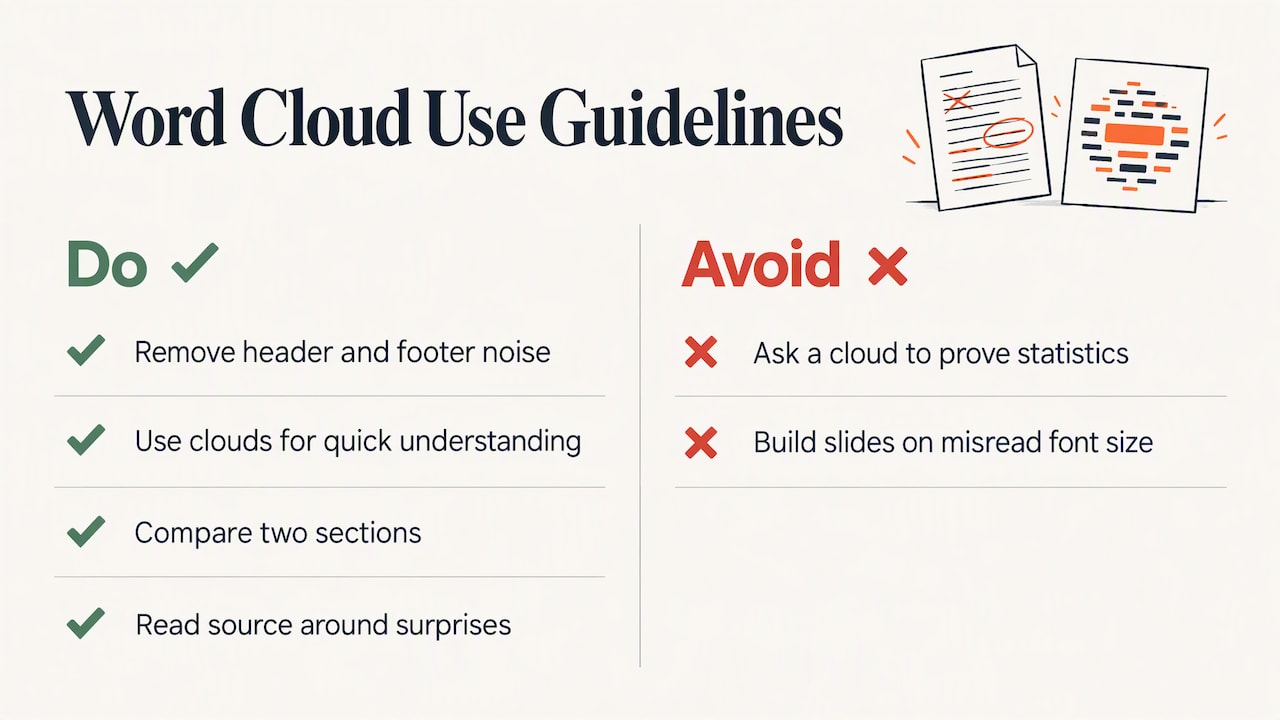
The second is asking a cloud to prove something. We designed the generator for quick understanding and good-looking output: lesson concepts for teachers, repeated themes in customer feedback for marketers, a first look at a long document for analysts. That is a real job, and a cloud does it well. It is not a statistics package, and we would rather you know that than build a presentation on a misread font size.
The third is friction. Many people need a cloud once, for one lesson or one slide. That is why we do not ask you to register, and why the PDF, text, CSV, web page, YouTube comment and image-with-OCR inputs all live in the same place. Our advice: make the cloud, remove the noise, compare two sections, then read the source around whatever surprises you.
— Natalie
Make your own word cloud from a PDF
Ready to try it? Open the PDF word cloud generator, upload your file, turn on stop word removal and pick a theme. It is free and needs no sign-up. Teachers can start from our classroom page, and students from the study and project page.
FAQ
What app can I use to make a word cloud from a PDF?
You can use a browser-based generator that accepts PDF uploads, a text-analysis environment such as Voyant Tools, or a Python script with the wordcloud library. A browser tool is quickest because there is nothing to install. Ours takes a PDF directly and needs no account.
Why is my PDF word cloud empty or full of strange words?
Your PDF is probably a scan, so there is no text to extract, or OCR misread the page. Test by trying to select and copy a sentence. If you can’t, run OCR first and check the recognized text for errors before generating the cloud.
Can I use a PDF word cloud in PowerPoint?
Yes. Export the cloud as a PNG or JPEG, then insert it as a picture on a slide. Add alt text or a short list of the top words so the slide still communicates for people who can’t see the image. Our PowerPoint guide walks through it.
Does a bigger word mean it is more important?
It means the word appears more often, which is not always the same as important. Font size is also hard to judge precisely by eye. Use the cloud to spot themes, then check the source text and a ranked list before drawing conclusions.
Sources
- Voyant Tutorials and Resources, UC Santa Cruz Library Guides
- Module 4: Converting Scanned Documents into Section 508 Conformant PDFs, Section508.gov
- Free OCR for PDF, Adobe Acrobat
- amueller/word_cloud, GitHub
- pdf-to-wordcloud, PyPI
- Semantically Grouped Word Cloud Designs, UC Berkeley
- Perceptual Biases in Font Size as a Data Encoding, University of Wisconsin