How to Make a Word Cloud From Google Sheets Data
Google Sheets has no built-in word cloud. Learn how to clean your cells, export them as CSV or copy them, and get a sharp word cloud in minutes, free.

Google Sheets can’t draw a word cloud on its own. The fastest route is to clean the text in your sheet, then either copy the column or download the sheet as a CSV and drop it into a dedicated word cloud generator. You can have a finished, downloadable image in about five minutes, with no add-on to install and no account to create.
This guide walks through that route step by step, including the cleanup that decides whether your cloud is useful or misleading. It also covers the add-on route, what to do if you want the cloud to update as new rows arrive, and how to bring the result back into Slides or Docs.
TL;DR
- Sheets has no native word cloud chart type, so you either install an add-on or move your text into a separate generator.
- The quickest method: clean one column, download the sheet as CSV (or copy the cells), and paste or upload it into a generator.
- Normalize first. Mixed capitalization and stray punctuation split one word into several, which distorts the sizes.
- Link multi-word phrases with a tilde or underscore so “customer feedback” stays one phrase.
- Export as PNG for slides, or SVG when you need a sharp image at any size.
Table of Contents
- Why Google Sheets has no word cloud chart
- Method 1: Copy or export your sheet into a generator
- Method 2: Use a Sheets add-on
- Can the word cloud update itself?
- Worked example: cleaning 200 survey answers
- Perspective: what we’ve learned about spreadsheet clouds
- Put the finished cloud to work
- Mistakes that make Sheets word clouds misleading
- Try it with your own sheet
- FAQ
- Sources
Why Google Sheets has no word cloud chart
Sheets is built for numbers. Its chart menu offers column, line, pie, scatter, map and similar types, but nothing that counts words in free text and sizes them by frequency. Google’s own page on adding charts lists the chart types it supports, and a word cloud isn’t among them (Google Docs Editors Help).
That leaves you two practical options:
- Install an add-on from the Extensions menu and generate the cloud inside the spreadsheet.
- Export or copy your data to an outside generator, build the cloud there, and download the image.
Both work. Which one you pick depends on how often you’ll repeat the task and how much control you want over the look.
Method 1: Copy or export your sheet into a generator
This is the method we recommend for most people, because it needs nothing installed and gives you the most control over fonts, colors and layout.
Step 1: Get the text into one column
Word clouds work best on a single column of text, such as survey answers, product reviews, support ticket subjects or a list of keywords. If your responses are spread across several columns, combine them in a helper column with a formula like =A2&" "&B2, then fill it down.
Keep a copy of the original sheet. You’ll be editing text in place, and you may want the raw version later.
Step 2: Clean the text
This step matters more than any design choice. The most common pitfall with spreadsheet word clouds is skipping normalization: “Apple” and “apple” count as different entries, and so do words with trailing punctuation or doubled spaces. Practitioners suggest using the LOWER function in Sheets to unify casing before you generate anything.
A short cleanup recipe:
- Lowercase everything:
=LOWER(A2) - Trim stray spaces:
=TRIM(LOWER(A2)) - Strip punctuation:
=REGEXREPLACE(TRIM(LOWER(A2)), "[^a-z0-9 ']", "") - Standardize wording: use Find and replace (Ctrl+H on Windows, Cmd+Shift+H on Mac) to merge variants like “login” and “log in”, or “sign-up” and “signup”.
Then copy the cleaned column and paste it back as values only (Edit, Paste special, Values only), so the generator sees plain text instead of formulas.
Step 3: Protect the phrases you care about
Most generators split text on spaces, so “customer service” becomes two separate words, “customer” and “service”. If the phrase is the real signal, join it before you generate. A common practitioner trick is to replace the space with a tilde or underscore, as in customer~service, which makes the engine treat it as one token.
In Sheets you can do this for a known list of phrases with nested SUBSTITUTE calls, or with Find and replace for the handful of phrases that matter most. Don’t try to do it for every pair of words. Pick the five to ten phrases your audience would actually recognize.
Step 4: Move the data
You have two ways to hand the text over.
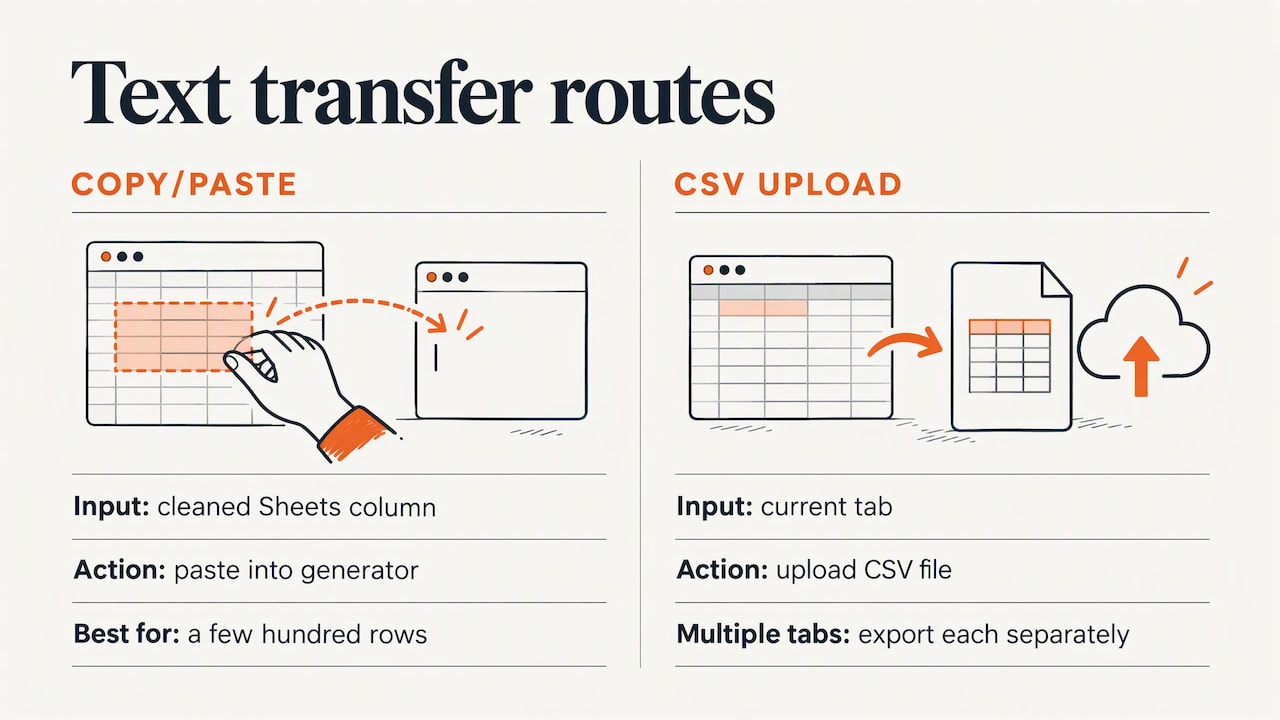
Copy and paste. Select the cleaned column, copy, and paste it into the text box of your generator. This is fastest for a few hundred rows.
Download as a file. Go to File, Download, and choose Comma Separated Values (.csv). Sheets saves the current tab as a CSV, so if your data lives on several tabs, repeat the step for each one. Then upload the file to the generator.
If your numbers come from a bank or accounting system rather than a form, you may first need to get them into Sheets at all. A bank transaction export to Google Sheets can bring transaction descriptions into a column, which you can then clean and cloud the same way to see which merchants or spending themes show up most.
Step 5: Generate, tweak and export
Paste or upload the text into the Word Cloud Generator. It takes typed or pasted text, CSV files, PDFs, web page URLs, YouTube comments and image uploads with OCR, so you can mix sources if your research spans more than one format. You don’t need to register.
Then make three decisions:
- Stop words. Turn on stop word removal so “the”, “and” and “of” don’t dominate. If your data has its own filler, such as the product name that appears in every row, remove that too, or it will become the biggest word in the cloud and say nothing.
- Font and colors. The tool offers 26 fonts and 12 color themes. Pick a high-contrast theme for projector slides, and a calmer one for printed reports.
- Export format. Use PNG or JPEG for slides and documents, and SVG if you want crisp edges when the image is resized or printed.
Method 2: Use a Sheets add-on
If you do this every week, an add-on may suit you. You open Extensions, choose Add-ons, then Get add-ons, and search the Google Workspace Marketplace for “word cloud”. The Marketplace search results show what’s currently available for Sheets.
The trade-offs are worth knowing before you install:
| Add-on inside Sheets | External generator | |
|---|---|---|
| Setup | Install and grant permissions | Nothing to install |
| Account needed | Google account permissions for the add-on | None with our tool |
| Design control | Varies by add-on | Fonts, themes, shapes, export formats |
| Updates with the sheet | Often, with a re-run | Re-upload the file |
| Works outside Sheets | No | Yes: text, PDF, URL, images |
| Best for | Repeated, in-sheet reports | One-off visuals and presentations |
Add-ons ask for access to your spreadsheet. If the sheet holds customer names, emails or anything confidential, read the permissions screen carefully, or use the export route with an anonymized column instead.
Can the word cloud update itself?
A question that comes up often in Sheets communities is whether a cloud can refresh automatically as new rows arrive. Without writing a script, the honest answer is mostly no. A static image from a generator is a snapshot, and you’d re-export the column and regenerate it when the data changes.
What you can do is make the refresh painless:
- Keep all your text in one column on a dedicated tab, so the range never changes.
- Put your cleanup formulas in a second column so new rows are cleaned the moment they’re pasted.
- Save the settings you like (font, theme, stop words) in a note at the top of the tab, so each regeneration looks the same.
- Re-export on a schedule: weekly for a survey, after each session for a class.
If you truly need a live view during a meeting, where the audience types and words appear in real time, that calls for a live polling tool that runs alongside your slides rather than a spreadsheet workflow. For a finished image of collected responses, the export route is simpler and more reliable.
Worked example: cleaning 200 survey answers
Say you ran a short customer survey with the question “What one word describes our onboarding?” and 200 people answered. Here is what the raw column often looks like: “Easy”, “easy!”, "Easy ", “simple”, “Confusing”, “confusing.”, “too long”, “Too Long”, “quick”.
Without cleanup, a generator sees “Easy”, “easy!” and "Easy " as three words. Each looks small, and “easy” never shows up as the winner it actually is.
With cleanup:
=TRIM(LOWER(A2))unifies case and spacing.REGEXREPLACEremoves the exclamation points and periods.- Find and replace turns “too long” into
too~longso it stays whole. - Paste values only, download as CSV, upload.
Now “easy” combines all its variants into one large word, “confusing” is clearly the second theme, and “too long” is a readable phrase instead of two meaningless fragments. That’s a cloud you can put in a team update without caveats.
Perspective: what we’ve learned about spreadsheet clouds
We built our generator around one idea: getting from raw text to a clear visual shouldn’t need an account, a payment or a tutorial. When we look at how people use spreadsheet data with it, a few patterns stand out.
First, the design is almost never the problem. The data is. A cloud built from uncleaned text looks busy and says little, and people blame the tool when the fault is in the source column. Ten minutes of lowercasing, trimming and merging variants does more for the result than any font choice.
Second, a word cloud is a summary, not an analysis. It shows what’s frequent, not what’s important, and it can’t tell “not good” from “good”. For marketers reading customer feedback, we suggest using the cloud to spot themes worth investigating, then reading the actual rows behind the biggest words. For teachers, the cloud works best as a conversation starter: show it, and ask students what surprises them.
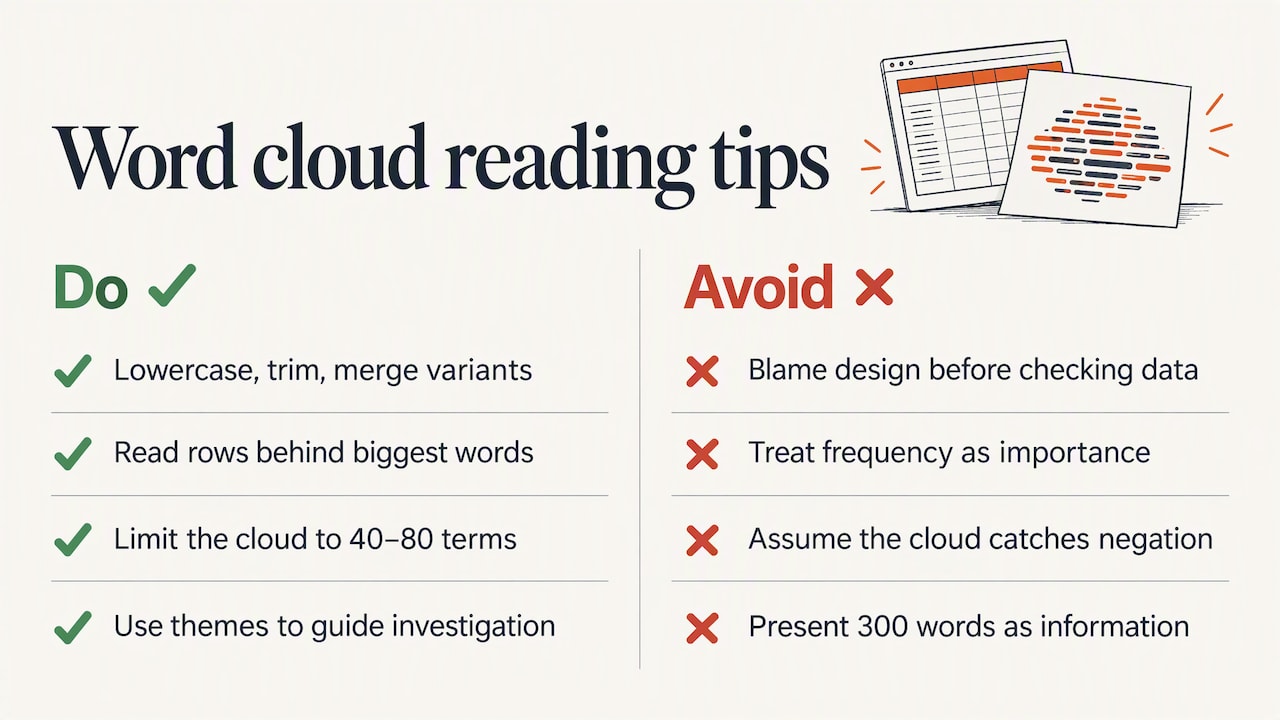
Third, keep it small. Cut the word limit so the cloud shows the top 40 to 80 terms. A cloud with 300 words is texture, not information.
Finally, think about where the image is going. If it lands on a slide, our guides on adding a word cloud to Google Slides and on word cloud ideas for presentations show layouts that read well from the back of a room.
— Natalie
Put the finished cloud to work
Once you have your PNG or SVG, here’s where it usually goes.
In Google Slides
Google Slides doesn’t include a word cloud feature either, so you insert the exported image: Insert, Image, Upload from computer. Our walkthrough on how to add a word cloud to Google Slides covers sizing and placement. Add-ons for live audience participation exist, but they solve a different problem from visualizing data you already have.
In Google Docs
For reports and handouts, upload the image the same way, through Insert, Image. If your source text is actually in a Doc rather than a sheet, see how to make a word cloud in Google Docs.
In PowerPoint
If the audience is on Microsoft’s side of the fence, the same PNG works there too, and we’ve written up how to make a word cloud in PowerPoint with tips for keeping text legible.
In the classroom or for study projects
Teachers can turn vocabulary lists, exit-ticket responses or reading-response columns into a visual in a couple of minutes. See our page for teachers or the student version for ideas.
For SEO and keyword work
If your sheet holds a keyword export, a cloud gives a quick read on which terms dominate a page or a topic. Our keyword visualization guide shows how to read it as a diagnostic.
Mistakes that make Sheets word clouds misleading
- Skipping the cleanup. Variants of the same word split the count, as the example above showed.
- Leaving the obvious word in. If every row mentions your brand or the survey topic, that word will dwarf everything else. Remove it.
- Counting the header. Make sure the column title isn’t in the pasted range, or it becomes a word.
- Mixing numeric columns. Numbers like “2024” or “5” turn into words. Filter them out unless they matter.
- Overinterpreting size. Size shows frequency only. It doesn’t show sentiment, importance or cause.
- Using color as data. In most generators, color is decoration. Don’t read meaning into which words are blue.
- Too many words. Cap the count so the biggest terms are readable.
Try it with your own sheet
Open your sheet, clean one column, and download it as CSV. Then head to the Word Cloud Generator: paste or upload your text, switch on stop word removal, pick a theme, and export a PNG, JPEG or SVG. It’s free, and nobody asks you to sign up. If you want to see the steps before you start, how it works explains each setting.
FAQ
Can Google Sheets make a word cloud by itself?
No. Sheets has no built-in word cloud chart, and Google’s chart documentation lists no such type. You need an add-on from the Workspace Marketplace or an external generator that accepts pasted text or a CSV file.
How do I create a word cloud from a Google Sheets column?
Clean the column with LOWER and TRIM, copy it or download the sheet as CSV, and paste or upload it into a generator. Remove stop words, choose a font and color theme, then export. The whole process takes a few minutes for a typical survey.
Why does my word cloud show the same word twice?
Usually because the source text differs in capitalization, punctuation or spacing, so the tool counts “Easy” and “easy!” separately. Normalizing the column before you generate fixes it. The same applies to spelling variants, which you can merge with Find and replace.
How do I keep two-word phrases together?
Replace the space with a tilde or underscore before generating, for example customer~feedback. The engine then treats it as a single token, and as the Europlanet toolkit notes, it still reads as a phrase in the final graphic. Do this only for the few phrases that matter.
Do I need an account to use the generator?
No. You can paste text or upload a CSV and download your image without registering. See the account FAQ for details.
Sources
- Add & edit a chart or graph, Google Docs Editors Help
- Evaluation tool: Word clouds, Europlanet
- How to Save Google Sheets as CSV (4 Easy Ways), Excel Insider
- word cloud search results, Google Workspace Marketplace