Word Cloud Examples for Presenters: Prompts and 5 Steps to Slides
Find word cloud examples for presentations, classes, and events, plus prompts to copy and five steps to create a clear cloud and add it to slides.
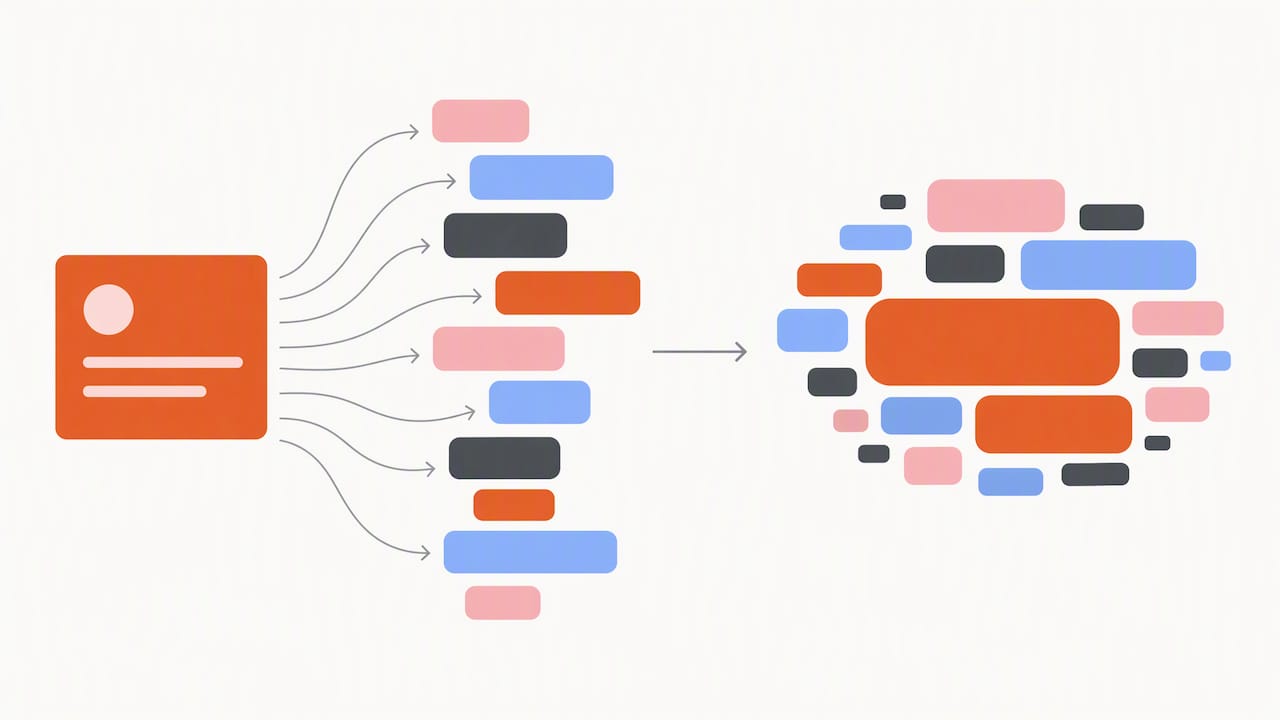
A word cloud turns a pile of short answers into one picture where the most repeated words appear largest, which makes it a fast way to engage a room. It works well in presentations, meetings, classrooms, training sessions, and events. Below you get a short how-to, copy-ready prompts grouped by setting, and tips for keeping your cloud readable and honest.
TL;DR:
- Before generating a cloud, remove prompt filler, merge synonyms, and standardize capitalization so word variants count together rather than appearing separately.
- Use short, constrained answers and high contrast; export as SVG for sharp projector display, then resize it without losing image quality.
- Because longer words can occupy more space at equal frequency, adjust font and spacing, and check top words with a bar chart when counts matter.
- A 2015 undergraduate anthropology study reported more critical thinking and cited evidence with word clouds; instructors should still verify themes against original responses.
Table of Contents
- Why use a word cloud in your session or slide deck?
- How do you make a word cloud and add it to a slide?
- What are some good word cloud examples and prompts?
- How can you make a word cloud clearer and less misleading?
- What does research say about word clouds?
- What I reach for first when I plan a session
- How can you build these examples with our Word Cloud Generator?
- FAQ
- Sources
Why use a word cloud in your session or slide deck?
Word clouds earn their place for a few specific reasons, and knowing them helps you pick the right moment.
- Engagement: Everyone can respond, and the cloud builds on screen as responses arrive. Practitioner guidance from Slido describes word clouds mainly as icebreaker and engagement tools in professional and event settings, where one-word answers create immediate visual feedback and start conversations.
- Quick summary: A cloud shows the mood of a group at a glance, so you can react in real time instead of reading a long list of replies.
- Exploratory insight: Open-ended answers often hide recurring themes. A cloud surfaces them so you can pick a topic to discuss next.
- Honest limits: A cloud is a conversation starter, not a measurement. If you need exact counts, follow up with a chart or read the original responses.
Think of it as the opening move in a conversation. It tells you where to look next, and the room helps you decide what it means.
How do you make a word cloud and add it to a slide?
Follow these steps, whether you are running a live session or preparing a deck. Our longer 5-minute guide to making a word cloud walks through the same flow with screenshots.
- Collect your input. Ask a single-word prompt, export a chat, or paste text or a CSV of survey answers.
- Clean the text. Remove stop words such as “the” and “and,” merge synonyms, and normalize casing so “Team” and “team” count as one word.
- Set the look. Pick a readable font, a high-contrast color theme, and a layout that fits your slide. Short responses give the cleanest result.
- Export or go live. Save a high-resolution PNG or SVG, or use a live word cloud tool while people respond.
- Insert and share. Drop the image into PowerPoint or Google Slides, or share the live link during the meeting.
Pro Tip: Export as SVG when you can. It stays sharp on a projector and lets you resize the cloud without blurry edges.
What are some good word cloud examples and prompts?
Pick one prompt, ask it out loud, and let the answers fill the screen. Each group below includes what to expect so you can plan your next sentence.
Icebreakers and openers
- “One word: how are you feeling right now?” Expect words like tired, curious, and caffeinated. A big “tired” tells you to start with energy.
- “Where are you joining from?” Great for webinars. The cloud turns into a quick map of cities and countries.
- “Describe your week in one word.” Gives a gentle, low-pressure start for a team that does not know each other yet.
- “What is your go-to snack?” Light and funny, and almost everyone has an answer ready.
Get-to-know and audience profiling
- “What is your role, in one word?” Shows you instantly whether your room is mostly managers, designers, students, or a mix.
- “What topic should we cover more?” Adjust your agenda on the spot based on the biggest words.
- “What is your experience level with this topic?” Use words like beginner, intermediate, and expert to set the right pace.
Team meetings
- “Biggest win this week?” Celebrates progress and often reveals wins you did not know about.
- “Top challenge right now?” Repeated words point straight at the problem to fix first.
- “One word for our team culture.” A useful pulse check you can repeat regularly to see what changes.
- “Shout-outs: who helped you this week?” Names grow larger with every mention, which makes recognition visible.
Training and classroom
- “Summarize today’s lesson in one word.” Quickly shows what stuck and what did not. Teachers can find more activities in our classroom guide for teachers.
- “Name a key term from this unit.” A fast vocabulary recall check before a quiz.
- “What do you already know about this topic?” Run it before the lesson, then run it again afterward and compare the two clouds.
- “What is still confusing?” Surfaces gaps while there is still time to address them.
Events, webinars, and feedback
- “Biggest takeaway from this session?” Gives speakers instant, honest feedback.
- “Rate this session in one word.” A short, NPS-style pulse that people actually finish.
- “What should we do next time?” Collects ideas for the next event while attendees are still engaged.
- “One word to describe today’s event.” A natural closing slide that people tend to screenshot and share.
How can you make a word cloud clearer and less misleading?
A few small habits separate a useful cloud from a confusing one.
- Customize your stop words. Remove filler terms and anything that repeats because of the prompt itself. Practitioners recommend cleaning text with custom stop words and merged synonyms to reduce visual noise.
- Keep responses short. Single words or tightly controlled phrases stay readable. Long sentences break into fragments.
- Merge related terms. If half the room says “meeting” and half says “meetings,” combine them so the theme shows at full size.
- Watch word length. European data visualization guidance warns that word size can mislead, since longer words take up more space even at equal frequency. Adjust font and spacing to compensate.
- Use contrast. Dark text on a light background, or the reverse, reads well from the back of a room and helps viewers with low vision.
Pro Tip: Run a quick bar chart of your top five words next to the cloud when the exact numbers matter. The cloud shows the mood, and the bars show the facts.
What does research say about word clouds?
The evidence is encouraging, and it comes with limits worth respecting.
Students who analyzed text with word clouds showed more instances of critical thinking than students who used linear text, according to a 2015 comparative study in undergraduate anthropology classes. They also paired their thoughts with cited evidence more often.
A related exploratory study of online discussions reported a similar pattern in discussion posts. Practitioners also treat clouds as exploratory tools for surfacing themes, not as proof. The practical takeaway: use the cloud to start the discussion, then check the source responses or a more precise chart before drawing conclusions.
What I reach for first when I plan a session
My quick checklist: one prompt, one clear goal, one-word answers, and a cloud I can read from the back row. For opening a session, I ask “One word for how you feel right now.” For reflection, I ask “What is one thing you will do differently tomorrow?” Then I watch the room’s response and adjust. If a prompt flops, rewrite it and try again. The audience tells you quickly what works.
— Natalie
How can you build these examples with our Word Cloud Generator?
We built our free Word Cloud Generator so you can make every cloud in this article without signing up. You can type or paste text, import a CSV of survey results, pull in YouTube comments, and fine-tune the cloud’s appearance. Then export a high-resolution PNG, JPEG, or SVG for your slides.
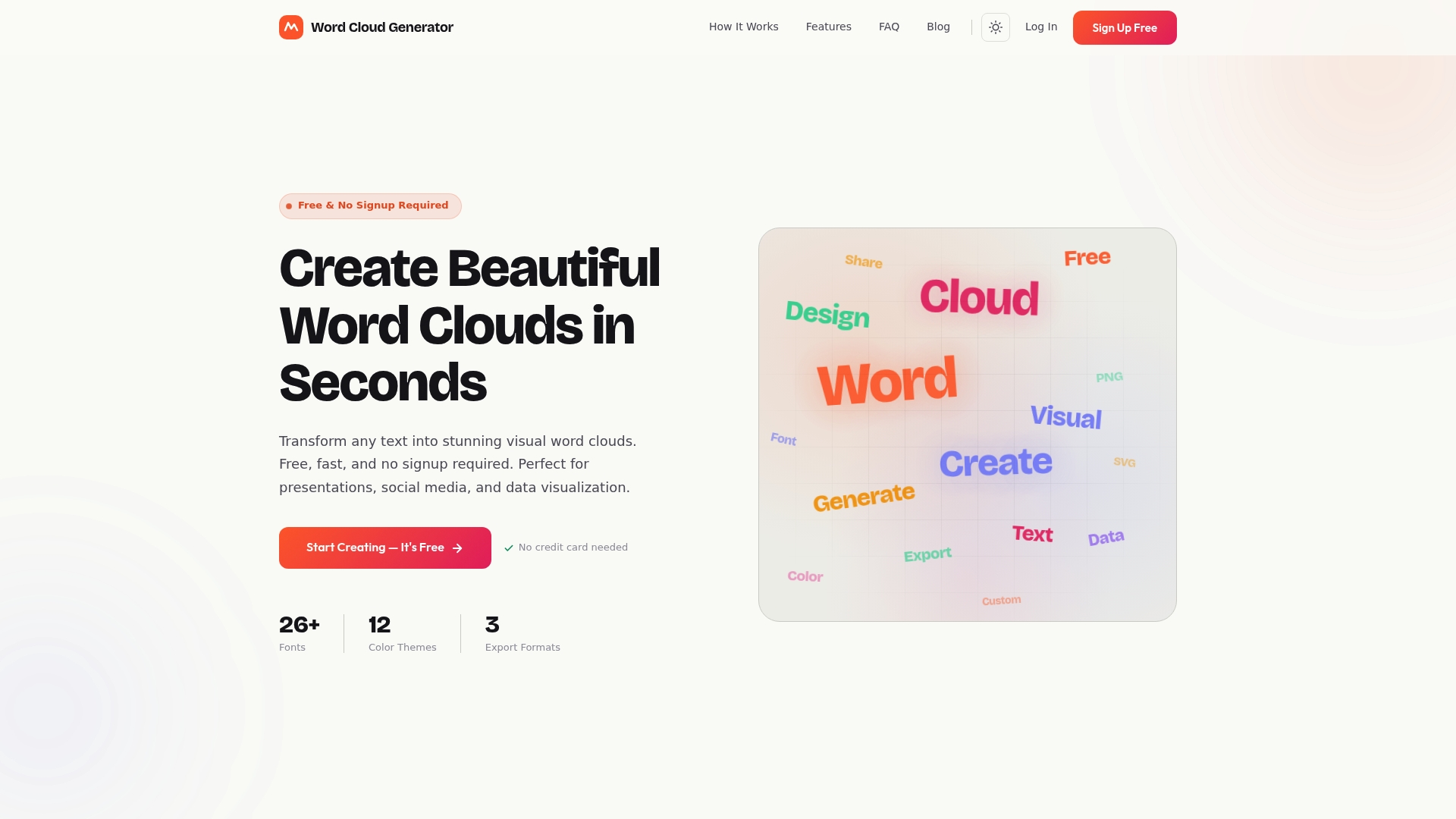
For a one-off session, paste your responses and generate the cloud in seconds. For survey data, import the CSV and clean the stop words before you export. Teachers can head straight to our teacher page for classroom-ready visuals. Open the generator and build your first cloud now.
FAQ
How can I create a word cloud?
Paste or type your text into a word cloud tool, remove stop words, pick a font and color theme, then export the image. Our guide to what a word cloud is covers the basics if you are new to it. The process varies by tool and the text you provide.
Can ChatGPT create a word cloud?
It can, by running code with libraries such as wordcloud and matplotlib, as this overview of ChatGPT’s code interpreter explains. You usually need to supply an exported text file and set the parameters yourself. A dedicated tool is faster when you just need a clean visual.
Is Microsoft Word able to make a word cloud for free?
To make a word cloud, you can use an online generator. The simplest route is to create the cloud in a free online generator and insert the exported image into your document or slide.
What makes a word cloud easier to read?
Short, single-word responses with cleaned stop words and high color contrast read best. Practitioners also note that prompts asking for single-word or constrained answers produce clearer, more useful clouds.
Sources
- Eric
- 52 Word Cloud Examples for Your Meetings and Events – Slido Blog
- Visualising with text: visual text properties
- Semanticscholar
- [Influence of Word Clouds on Critical Thinking in Online Discussions: A Content Analysis
| Journal of Teaching and Learning with Technology](https://scholarworks.iu.edu/journals/index.php/jotlt/article/view/13805)