How to Create a Word Cloud in Microsoft Word (Easy Methods + Free Tool)

How to Create a Word Cloud in Microsoft Word (Easy Methods + Free Tool)
Microsoft Word is great for reports, essays, and printed worksheets. It is not built as a word cloud generator. There is no “Insert → Word Cloud” button in Word for Microsoft 365, Word 2021, Word 2019, or older desktop versions. That surprises a lot of people searching for how to create a word cloud in Microsoft Word—especially teachers building vocabulary posters, marketers summarizing survey themes, and students dressing up a research brief.
This guide solves that job thoroughly. You will get:
- What Word can and cannot do natively
- Practical workarounds inside Word (when you must stay offline)
- The recommended free path: build a real word cloud in minutes on wordcloudgenerator.app, then insert the PNG/JPEG/SVG into Word
- Download settings that look sharp in print and on screen
- Layout, accessibility, and classroom tips
- A full FAQ for common Word + word cloud questions
If you only need a polished cloud for a doc or handout, skip to [Method 1 (recommended)](#method-1-recommended-create-the-cloud-for-free-then-insert-into-word). If you are comparing options or stuck without internet, use Methods 2–3.
Related reading: How to create a word cloud for free · How to make a word cloud · Word clouds for teachers · Google Slides word cloud · Word cloud from survey results
Why Microsoft Word does not have a built-in word cloud tool
A word cloud (also called a tag cloud) sizes words by how often they appear in your source text. Bigger words = higher frequency (or higher weight if you upload a CSV with counts). Building that layout means:
- Counting tokens (words)
- Filtering stop words (“the,” “and,” “of,” …)
- Placing words without overlaps in a shape or canvas
- Applying fonts, colors, and themes
- Exporting a crisp image for documents and slides
Word’s layout engine is optimized for paragraphs, tables, and floating images—not frequency-driven typography layouts. You can fake a “cloud look” with WordArt, text boxes, or SmartArt, but you will manually resize every word. That does not scale past a dozen terms and will not reflect true frequencies unless you calculate them yourself.
Bottom line: For anything beyond a decorative handful of keywords, generate the cloud in a dedicated free tool, then place the image in Word. That is the same practical approach people use for PowerPoint and Google Slides.
What you need before you start
Gather these so the cloud actually answers your question (not just look pretty):
| Input | Good for | Tips | | — | — | — | | Plain text (essay, notes, open responses) | Classroom themes, brainstorm dumps | Remove names or private data first | | CSV with word + count columns | Survey tallies you already coded | Matches how researchers weight themes | | YouTube comments export / paste | Video audience language | Great for content creators; paste cleaned text |
On wordcloudgenerator.app you can paste text, use CSV, or pull YouTube comments. There is no signup required to create and download. You get 26 fonts, 12 themes, and exports as PNG, JPEG, or SVG.
Product note (accurate): The live tool accepts text, CSV, and YouTube comments. It does not currently upload PDF, images, or arbitrary URLs as source files. If your content lives in a PDF or scanned worksheet, copy the text out (or OCR it) and paste it into the generator—or export a CSV of frequencies first.
Method 1 (recommended): Create the cloud for free, then insert into Word
This is the fastest path that still looks professional in a syllabus, newsletter, or student packet.
Step 1 — Open the free word cloud generator
Go to https://wordcloudgenerator.app/ or the dedicated free landing page https://wordcloudgenerator.app/free-word-cloud-generator/.
You should see the canvas and controls without creating an account.
Step 2 — Paste or import your source words
Pick the input that matches your workflow:
- Paste text — Drop in paragraphs, brainstorm lists, or open-ended survey answers. The tool counts frequencies for you.
- CSV — Use when you already have
word,count(or similar) columns from Excel, Google Sheets, or Forms analysis. This is ideal after you tally survey results. - YouTube comments — Pull language from a video’s comment section when you want audience vocabulary visualized.
Clean obvious junk before you paste: duplicate headers, “N/A,” email addresses, and random IDs. Garbage in → noisy cloud out.
Step 3 — Shape the design (fonts, themes, stop words)
Spend two minutes here—this is what separates a poster-ready cloud from a blob of filler words:
- Choose a theme (12 available) that matches your Word document palette (school colors, brand colors, grayscale for print).
- Pick a font (26 available) that will still read when the PNG is scaled down in Word.
- Remove or reduce stop words so “the/and/of” do not dominate.
- Prefer fewer, larger words for print handouts; denser clouds work better for full-page slides (see our PowerPoint guide if that is your destination instead).
Step 4 — Download PNG, JPEG, or SVG
Export choices for Word:
| Format | Best when | Notes | | — | — | — | | PNG | Most Word docs, worksheets, color print | Sharp edges, transparency-friendly | | JPEG | Photo-like backgrounds, email attachments | Smaller files; avoid heavy recompression | | SVG | You may edit in Illustrator/Inkscape first | Word support varies by version; often convert SVG → PNG for reliable insert |
For classroom printouts and most business docs, PNG at a generous canvas size is the sweet spot.
Step 5 — Insert the image into Microsoft Word
In desktop Word (Windows or Mac):
- Place the cursor where the cloud should appear.
- Go to Insert → Pictures → This Device (Word for Microsoft 365 wording; older Word: Insert → Pictures).
- Select your downloaded PNG/JPEG.
- Resize with corner handles (hold Shift if your Word version needs it to keep aspect ratio).
- Set Wrap Text to Square, Tight, or Top and Bottom depending on whether text should flow around the cloud.
- Optional: Picture Format → Corrections / Color only if you must match a grayscale print budget—prefer exporting the right theme from the generator instead.
In Word for the web, use Insert → Pictures → This Device the same way; some wrap options are simpler than desktop.
Step 6 — Caption, alt text, and print check
Do not skip accessibility and print QA:
- Right-click the image → Edit Alt Text. Describe the top themes (e.g., “Word cloud of student brainstorm: democracy, vote, rights appear largest”).
- Add a caption if the cloud is a figure in a report (References → Insert Caption on desktop).
- File → Print → Print Preview (or PDF export preview). Confirm small words are still legible at the size you chose.
- If tiny words vanish on paper, regenerate with fewer words / stronger contrast and re-insert.
Teachers: pair the cloud with a short reflection prompt under it—“Circle three words that surprised you.” More classroom patterns live in the teachers classroom guide.
Method 2: Manual “fake cloud” with WordArt or text boxes (offline / decorative only)
Use this only when you need a decorative cluster of 5–15 keywords and cannot open a browser—or when the visual does not need true frequencies.
Steps
- List your keywords in a table or Excel sheet and sort by importance yourself.
- In Word: Insert → WordArt (or text boxes).
- Type the most important word largest; less important words smaller.
- Recolor to match your theme.
- Drag into a loose cluster. Rotate sparingly—rotated text is harder to read in print.
- Group objects (Ctrl/Cmd + click each → right-click → Group) so they move together.
Limits (be honest with yourself)
- You are not generating frequency-based sizes unless you measured counts elsewhere.
- Re-editing later is painful.
- Collaboration in Word Online with many floating objects gets messy.
If you already have frequencies from a survey, it is almost always faster to build the real cloud on the free generator and paste the image—see also word cloud from survey results.
Method 3: Build frequencies in Excel, then visualize
Power users sometimes:
- Paste responses into Excel or Google Sheets
- Use COUNTIF / pivot tables to get word frequencies
- Export CSV → upload to wordcloudgenerator.app
- Insert the PNG into Word
This hybrid is excellent for research summaries and board reports: Excel proves the numbers; the cloud communicates them visually inside the Word memo.
Design tips so the cloud looks good inside Word
Match the document, not just the canvas
- Margins: Leave breathing room; a cloud jammed into 0.5″ margins looks accidental.
- One cloud per section: Two dense clouds on one page compete.
- Contrast: Dark words on white paper work best for photocopying. Neon themes that look great on screen can fail on a grayscale copier.
- Brand/school colors: Recreate the palette with the generator’s themes/fonts before export when possible.
Resolution and scaling
- Create the cloud larger than you need, then scale down in Word. Upscaling a tiny PNG makes blurry posters.
- For posters, prefer PNG; for email newsletters, compress carefully or use a slightly smaller JPEG.
When PowerPoint or Slides is the better host
If the cloud is the hero visual for a presentation, build the slide in PowerPoint or Google Syned Slides and export a PDF handout—or keep a smaller copy in the Word packet. Same generator, different destination.
Classroom and workplace use cases (Word-specific)
| Scenario | Source text idea | Word placement tip | | — | — | — | | Vocabulary preview | Unit word list + student “words we know” | Top of worksheet under objectives | | Exit ticket themes | Paste anonymized exit slips | One page reflection handout | | Strategic planning memo | Sticky-note transcription or Forms export | Executive summary page 1 | | Book / article themes | Quotes and motif list | Literature circle packet | | Brand workshop | Customer adjectives | Proposal appendix |
For lesson sequencing and facilitation ideas, use the word cloud for teachers classroom guide. For Forms/survey pipelines, start with word cloud from survey results.
Common mistakes (and quick fixes)
- Pasting an entire PDF dump full of headers/footers — Clean the text first; the tool is not a PDF uploader.
- Leaving stop words on — Your cloud becomes “the / and / to.”
- Exporting tiny, then enlarging in Word — Blurry print. Export larger.
- Using WordArt and calling it “analysis” — Fine for decoration; label it honestly if frequencies matter.
- No alt text — Screen reader users get “image” with zero meaning.
- Neon on a black theme photocopied in grayscale — Unreadable. Use a print-friendly theme.
Build yours free in under two minutes
You do not need Microsoft add-ins, macros, or a paid Creative Cloud seat to get a real word cloud into Word.
- Open https://wordcloudgenerator.app/free-word-cloud-generator/
- Paste text, upload CSV, or use YouTube comments
- Pick a theme + font
- Download PNG (or JPEG/SVG)
- Insert → Pictures in Word
No signup required to create and download.
Also useful: How to create a word cloud for free · How to make a word cloud from text · How to make a word cloud
FAQ: Word clouds in Microsoft Word
Can I make a word cloud directly inside Microsoft Word?
Not with a native automatic word cloud feature. Word has no frequency-based cloud layout. Use a free generator and insert the image, or manually arrange WordArt for a small decorative set of words.
Does Word for Microsoft 365 include a word cloud add-in by default?
Microsoft 365 Word does not ship a standard first-party “Word Cloud” insert comparable to dedicated generators. Third-party Office add-ins exist in the Store, but quality, privacy, and pricing vary. Generating on wordcloudgenerator.app and inserting a PNG keeps your workflow simple and avoids add-in permissions.
What file format should I insert into Word?
PNG is the default recommendation. JPEG works for simpler backgrounds. SVG can be useful if you edit vectors elsewhere first; many Word setups still prefer PNG for predictable results.
How do I make a word cloud from a Word document’s own text?
Select and copy the body text (skip headers, footers, bibliographies if they skew counts), paste into the free generator, download, and insert the image back into the doc—or into a cover page.
Can I create a word cloud from a PDF in Word?
Word is not the right PDF→cloud pipeline. Copy text out of the PDF (or OCR a scan), paste into the generator, then insert the image into Word. The generator does not accept raw PDF upload as a source format today.
Is wordcloudgenerator.app free for classroom use?
You can create and download without signing up. That fits quick classroom and nonprofit workflows. Always follow your school’s rules for student data—anonymize responses before pasting.
Word vs PowerPoint vs Google Slides—where should the cloud live?
- Word: packets, essays, memos, printable worksheets
- PowerPoint: pitched visuals and lessons on a projector — see how to make a word cloud in PowerPoint
- Google Slides: collaborative class decks — see Google Syned Slides word cloud guide
Same free tool; pick the host that matches how people will view it.
How is this different from SmartArt?
SmartArt builds diagrams (cycles, pyramids, lists). It does not count word frequencies or pack weighted words into a cloud layout.
Next steps
- Make your cloud now: Free Word Cloud Generator
- Broader basics: How to make a word cloud
- Zero-budget path: How to create a word cloud for free
- Teaching angles: Word cloud for teachers classroom guide
- Survey workflow: Word cloud from survey results
- Presenting instead of printing: PowerPoint · Google Slides · From text walkthrough
Word cloud creation steps:
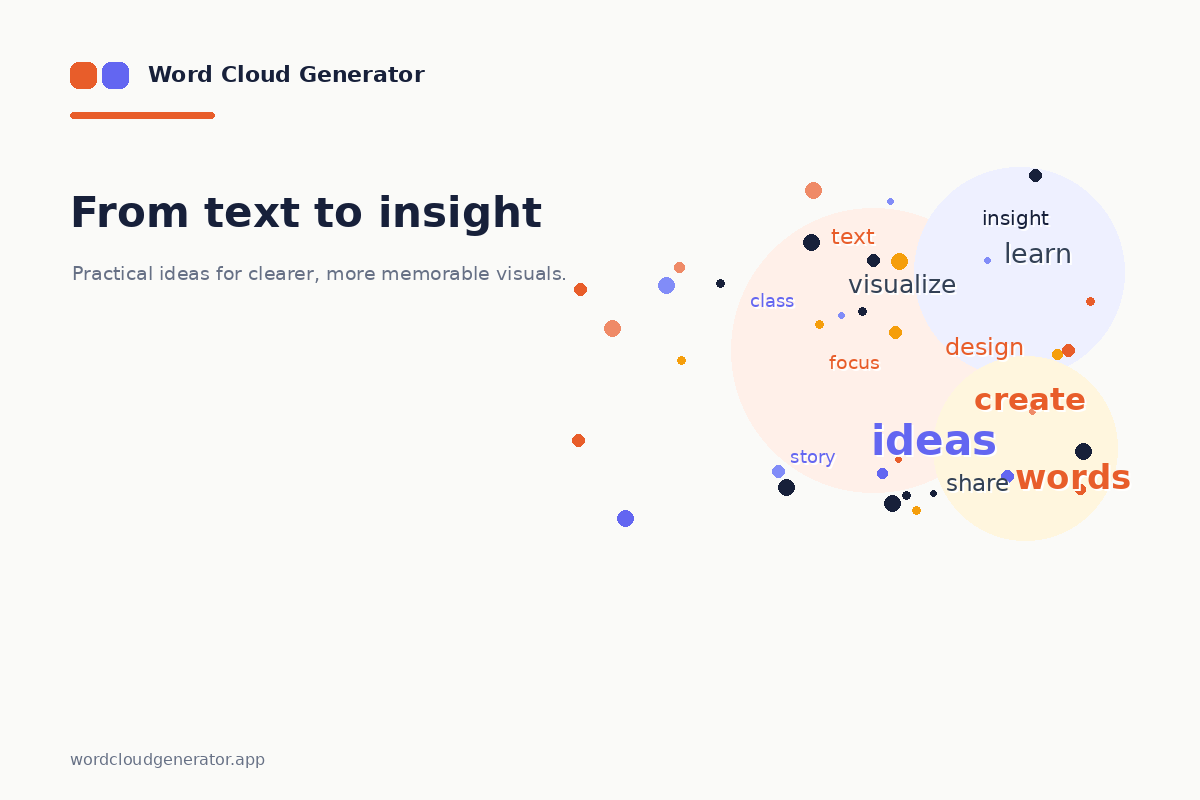
Export your finished word cloud: